4. Review screen of the Create New/Edit/Duplicate Notification wizard
The Review screen is the final screen of the Create New Notification, Edit Notification, and Duplicate Notification wizards. This screen displays a read-only summary of your notification configurations. Use this screen to review your configurations. If the notification requires changes, use the Back and Next buttons to navigate to the appropriate screens.
Note: If you are adding a new notification, the wizard is labeled Create New Notification. If you are editing an existing notification, the wizard is labeled Edit Notification. If you are duplicating an existing notification, the wizard is labeled Duplicate Notification. The screens and fields are identical for each variation of the wizard.
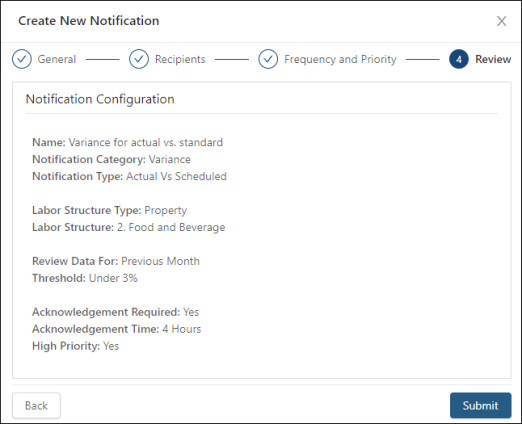
Fields on the 4. Review screen of the Create New/Edit/Duplicate Notification wizard
| Field | Description | Notes |
|---|---|---|
|
Name |
Name of the notification. |
Read-only. |
|
Notification Category |
Category of the notification. |
Read-only. |
|
Notification Type |
Type associated with the selected Category. |
Read-only. |
|
Labor Structure Type |
Labor structure type: Property or Master. |
Read-only. |
|
Labor Structure |
Selected labor structure level. |
Read-only. |
|
Review Data For |
Time frame for which to review data. |
Read-only. |
|
Threshold |
Defined threshold for notification. |
Read-only. |
|
Acknowledgment Required |
Yes or No—Whether or not the notification requires acknowledgment by recipients. |
Read-only. |
|
Acknowledgment Time |
Number of hours that the recipients are given to acknowledge the notification. |
Read-only. |
|
High Priority |
Yes or No—Whether or not the notification is marked as high priority. |
Read-only. |
|
Back |
Return to the previous screen in the wizard. |
|
|
Submit |
Submit your notification configuration and close the wizard. |
This button is available only if you have entered data into all required fields. |