Adding a recurring task standard
Create a Recurring Task Standard to specify standards for fixed work. Fixed work is any recurring task that is expected to be completed within a set amount of time.
This tab is only available if the Standard Type is set to KBI Related. For more information, see Configuring Planner Settings.
The Standards pane is available only if a job or assignment/sub-assignment is selected. The Standards pane is not available at the property, division, or department levels.
-
In the upper-left corner of the screen, select Access your applications (
 ).
).
The menu expands. -
Select Setup > Labor Standards.
The Labor Standards screen appears.
-
In the Labor Structure tree menu, select the labor structure level to which you want to add a standard.
Details for the selected labor structure appear in the right pane. -
From the Standard Set drop-down list, select the standard set that you want to work with.
-
If necessary, expand (
 ) the Standards pane.
 -
Select the Recurring Task Standards tab.
The Recurring Task Standards table appears. Click here for field descriptions.
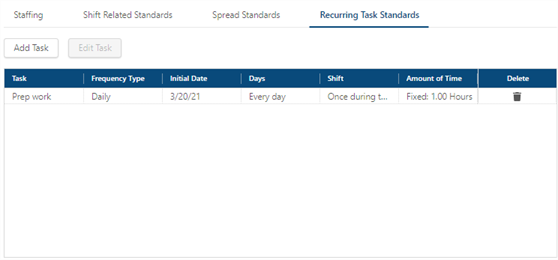
Fields on the Recurring Task Standards tab
Field Description Notes Controls Add Task
Add a new task.
Edit Task
Edit the selected task.
This button is only available if a spread standard is selected.
Table Task
Name of the task.
Frequency Type
How often the task is performed, on a daily, weekly, or monthly basis.
Initial Date
Date on which the task begins.
Days
Displays the frequency of the task:
-
Daily—How many days in the week the task is performed.
-
Weekly—Whether the job is performed every week or every two weeks and on which day(s) of the week the task is performed.
-
Monthly—Day of the month on which the task is performed and the months for which the task is performed.
Shift
Time of day when the task is performed.
-
Occurs During Shift—The task is performed at any time during the specified shift.
-
Occurs Once at—The exact time of day that the task is performed.
-
Repeats every ___ hours, between ___ and ___.—Number of hours after which the task is repeated, as well as the time frame in which the task is completed. For example, Repeats every 2 hours, between 8:00 and 16:00.
Amount of Time
Whether the time needed to complete the work is fixed or variable.
-
Fixed Hours—Number of hours required to complete the work.
-
Enter the total number of hours required to complete the work.
-
-
Variable Hours—KBI associated with the task. Enter the following information in the table:
-
From Volume/To Volume—Volume range of the standard.
-
Enter 1 in the From Volume field and up to 99999 in the To Volume field, to specify the range. For example, you use the KBI for Total Rooms. You know that you will never have more than 500 rooms, so you would enter 1 in the From Volume field and 500 in the To Volume field.
Note:If you use a KBI based on the number of rooms, and the time required to perform the variable work increases or decreases with higher volume, you should create and specify additional ranges. You can have multiple ranges for each KBI. Be careful to make the top end of the range a number that is higher than you could ever encounter. In the previous example, if you set the range as 1-500 and then enter 501 rooms (because a room was sold twice in one day), RMS will ignore the 501 and return a 0 standard.
-
Base Hours—Minimum number of hours that it takes to accomplish the task. These are fixed hours.
-
Additional Hours—Number of additional hours required to accomplish the task.
-
Per # Units—Number of units to be completed during the criteria set for the task.
-
-

Delete
Deletes the Recurring Task standard.
-
-
To add a standard, do one of the following:
Above the table, select Add Task.
The Add Recurring Task dialog box appears.
orRight-click any row in the table and select Add Standard.
The Add Recurring Task dialog box appears.Click here for field descriptions.Fields on the Add/Edit Recurring Task dialog box
Field Description Notes Recurring Task Name
Enter a name for the recurring task.
Required.
Initial Date
Enter or select the date on which the task begins.
Required.
Occurs During Shift
Select the start time for the shift during with the task is performed.
Required.
Task Frequency
Choose how often the task occurs.
Daily—Choose how many days in the week the task is performed.
Weekly—Choose whether the job is performed every week or every two weeks and on which day(s) of the week the task is performed.
Monthly—Select the day of the month on which the task is performed and the months for which the task is performed.
Required.
Task Duration
Choose whether the time needed to complete the work is fixed or variable.
Fixed Hours—Enter the number of hours required to complete the work.
Variable Hours—Select a KBI to be associated with the task. Enter the following information in the table:
From Volume/To Volume—Enter the volume range of the standard.
Enter 1 in theFrom Volumefield and up to 99999 in theTo Volumefield, to specify the range. For example, you use the KBI for Total Rooms. You know that you will never have more than 500 rooms, so you would enter 1 in theFrom Volumefield and 500 in theTo Volumefield.
Note:If you use a KBI based on the number of rooms, and the time required to perform the variable work increases or decreases with higher volume, you should create and specify additional ranges. You can have multiple ranges for each KBI. Be careful to make the top end of the range a number that is higher than you could ever encounter. In the previous example, if you set the range as 1-500 and then enter 501 rooms (because a room was sold twice in one day), RMS will ignore the 501 and return a 0 standard.
Base Hours—Enter the minimum number of hours that it takes to accomplish the task. These are fixed hours.
Additional Hours—Enter the number of additional hours required to accomplish the task.
Per # Units—Enter the number of units to be completed during the criteria set for the task.
Required.
Cancel
Closes the dialog box without applying your changes.
Save
Applies your changes and closes the dialog box.
-
In the Recurring Task Name field, enter a name for the task.
-
In the Initial Date field, type a date or select a date from the calendar (
 ) menu. The Initial Date determines the first date on which the recurring task begins.
 -
From the Occurs During Shift drop-down list, select the start time for the shift during which the task is performed.
-
In the Task Frequency section, choose how often the task is performed.
-
In the Task Duration section, choose whether the task is performed within a fixed amount of time or a variable amount of time.
-
Select Save.
The dialog box closes, and the recurring task standard is added to the table.