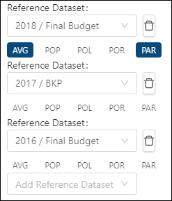
Configure Views dialog box in Budgeting

You access the Configure View dialog box from the Reference View field on the following Budgeting screens:

  • Budgeting Dashboard
  • Budget Tree

Use this dialog box to configure reference views, which comprise one to four datasets that you can use as a comparative reference while modifying the working budget. 

Note: You can select up to four reference datasets to view in the Budgeting Dashboard. For best performance, Unifocus recommends selecting one to three reference datasets.
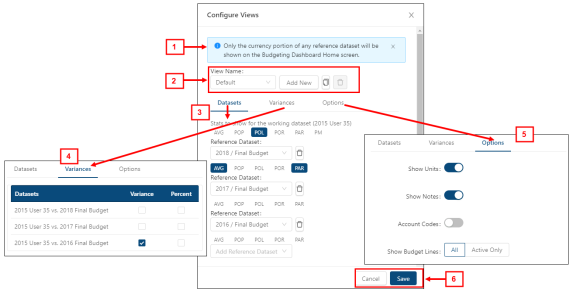
Fields on the Configure View dialog box

# Field Description Notes

1

Note

Informational note:

Only the currency portion of any reference dataset will be shown on the Budgeting Dashboard Home screen.

Read-only.

2
View controls
 

View Name

Select the reference view to work with.

Default: Your most recent view. If this is the first time that you are configuring or editing the view, the default is Default.

Add New

Adds a new reference view.


Clone

Clone this view

Creates a clone of the selected reference view. You can then rename the cloned view.


Delete

Delete saved view

Deletes the selected reference view.

Button is available only if a view is selected.


Tabs

3

Datasets

Select the stats options to include in the working dataset.

Stats options

Options include:

  • Delete

  • Stat types

    • AVG—Average = Total Budget Line Revenue or Expense ÷ Total Budget Line Units.

    • POP—Percent of Parent: calculates what percent a line is in relation to its parent line.

    • POL—Percent of Line: calculates what percent one line is of another line.

    • POR—Per Occupied Room: calculates the total monetary amount for the budget line divided by occupied rooms.

    • PAR—Per Available Room: calculates the total monetary amount for the budget line divided by available rooms.

    • PM—Performance Measure. 

Select stat types for Reference Datasets (1 - 4)
Stat types for reference datasets
Options include:

  • Reference Dataset Selector

  • Delete

  • Stat types:

    • AVG—Average.

    • POP—Percent of Parent: calculates what percent a line is in relation to its parent line.

    • POL—Percent of Line: calculates what percent one line is of another line. 

    • POR—Per Occupied Room: calculates the total monetary amount for the budget line divided by occupied rooms.

    • PAR—Per Available Room: calculates the total monetary amount for the budget line divided by available rooms.

Notes on stat types:

  • AVG—If you choose to show Average, all lines that do not contain the same type of units will show a blank due to the line not containing units or a mixture of units (hours and KBIs).

  • POL—Percent of Line is configured on the first main screen of the Add Budget Line wizard or on the General tab of the Edit Budget Line dialog box.

  • POR—There needs to be a KBI with a code of TTLRMS to show POR.

  • PAR—There needs to be a KBI with a code of AVAILRMS to show PAR.

  • PM—Although all lines can have performance measures, Unifocus recommends applying performance measures (productivity, FTE or cost of labor percent) to job lines. Performance measures are configured on the second main screen of the Line-specific fields on the Add Budget Line wizard and the Edit Budget Line dialog box.


4

Variances

The Variances tab includes a table with the following columns:

  • Datasets—Read-only list of configured datasets.

  • Variance—Select to see variance between the working and reference dataset.  

  • Percent—Select to see the percent variance between the working and reference dataset.


5

Options

Select information to display in the table:

  • Show Units

  • Show Notes

  • Account Codes

  • Show Budget Lines

    • All

    • Active only

Type of units are KBI or Hours (Regular and Overtime). Unifocus recommends showing all lines. The Budgeting software indicates whether a line is active or inactive in the working dataset. 

6 Buttons
 

Cancel

Closes the dialog box without applying your changes.


Save

Saves your changes and closes the dialog box.