Filters dialog box in Who Is In/Out
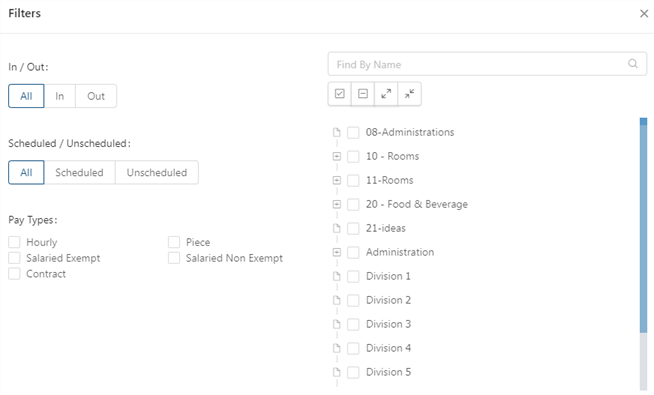
Fields for the Filter dialog box on the Who Is In/Out screen
| Field | Description | Notes |
|---|---|---|
|
In/Out |
Select one of the following options:
|
Default: All |
|
Scheduled/Unscheduled |
Select one of the following options:
|
Default: All |
|
Pay Types |
Select the check boxes to view one or more Pay Types:
|
|
|
Job tree menu |
Tree menu of organization levels.
If necessary, use the following controls to filter the tree menu:
|
|
 )—Begin typing search criteria into the field. The job tree actively updates to show only organization levels matching your entry
 )—Selects all divisions, departments, and jobs.
 )—Clears the check boxes of all divisions, departments, and jobs.
 )—Expands the job tree to show all organization levels.
 )—Collapses the job tree to show only the top level organization layer.