GUESTS screen
The GUESTS screen provides a summary of all registered guest details for your property, allowing you to view guest information at any status. You can apply filters and use the guest directory to search for guest details across the entire database.
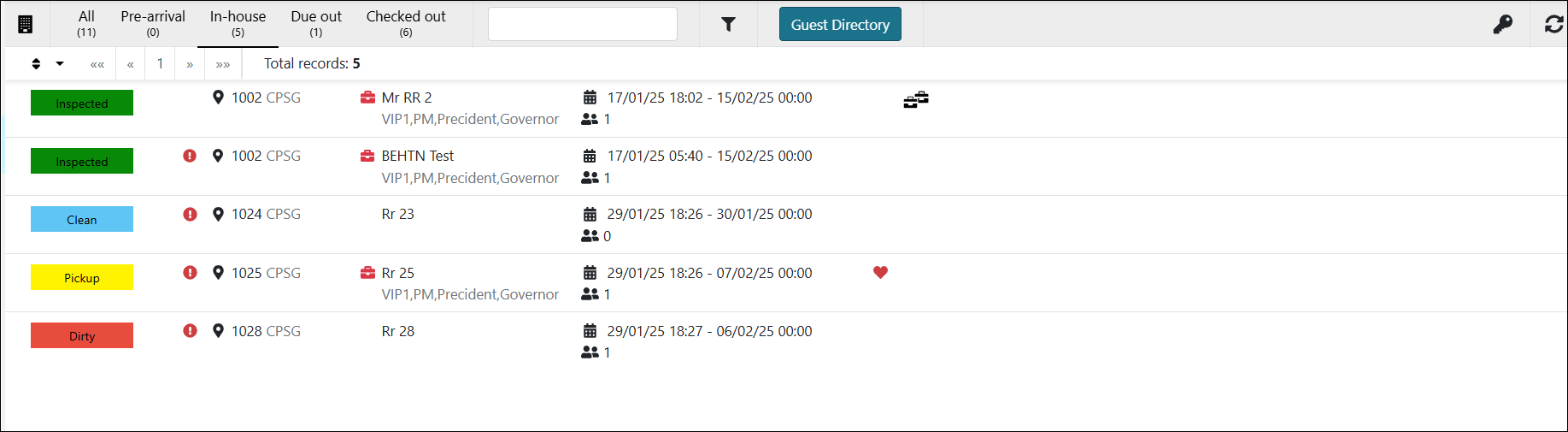
Fields on the GUESTS screen
| Field | Description | Notes |
|---|---|---|
| Filters and controls | ||
|
Select property |
Select the property from the drop-down list. |
This option is available only if you have access to multiple properties. |
|
Status filters |
Filter the screen by status:
|
|
|
Search |
Enter the Location, VIP status, or Guest name in the field. |
|
|
Filters |
Opens the Filters dialog box. For more information of the types of filters available, see Filters dialog box on the Guests screen. |
|
|
Guest Directory
|
Search for guests across the entire directory. | |
|
Legend |
View the meanings of all the status icons that appear on the Guests screen. |
|
|
Refresh |
Reload the Guests console screen to view the most up-to-date information. |
|
|
Sort by |
Change the order in which guests details appear on the screen
|
|
|
Pagination |
Use the first/last ( |
|
|
Total records |
Displays the total number of guests that match your sort and filter preferences. |
Read-only. |
| Table | ||
|
Status icon |
Displays the current status of the guests. For more information, see Status icons. |
|
|
( |
Displays logged glitches for the guest. |
|
|
Location and Property name |
Displays the location and name of the property. |
|
|
Guest name and VIP status |
Name of the guest, along with an icon indicating their VIP status. |
|
| Check-in, Check-out date and Pax | Check-in and check-out date and time, along with pax details. | |
( ) )Membership status |
Guests VIP membership status. | |
( ) )Sharer |
Appears if the guest is sharing a room with another person. | |






 ) and back/forward (
 ) arrows to view guests details on other pages of the screen.
 )
)