Manage Time Clocks
The Manage Time Clocks screen lists all Unifocus Time Clocks that are currently installed in your properties.
Note: Data from the Time Clocks is automatically transmitted to RMS.
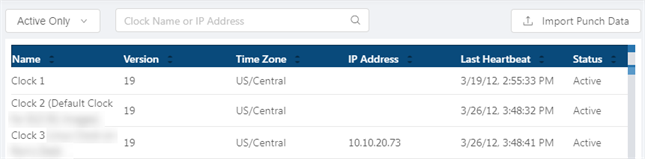
Fields on the Manage Time Clocks screen
| Field | Description | Notes |
|---|---|---|
| Controls
|
||
|
Import Punch Data |
Import a file. Each clock creates a .csv (or similar) file that can be imported via this process. |
Only available for Database Administrators |
|
Status Drop-down |
Filter by status of Time Clocks:
|
Default: Active Only. |
|
Search/filter |
Filter by clock name or IP address. The table filters as you type in the Search bar. |
|
| Table
|
||
|
Name |
Name of Time Clock. |
Read-only. |
|
Version |
Which software version is installed on the Time Clock. |
Read-only. |
|
Time Zone |
Time zone in which the clock is located. |
Read-only. |
|
IP Address |
IP address of the Time Clock. |
Read-only. If the Time Clock does not have an IP address, this field is empty. |
|
Last Heartbeat |
Displays the last time the clock transmitted data. Certain Time Clocks automatically transmit data according to a set schedule. Each time the clock transmits data, it is called a heartbeat. Only certain types of clocks work in this way. If you do not have this type of clock, this column will always be blank. |
Read-only. |
|
Status |
Whether the Time Clock is active or inactive. |
Read-only. |