Re-Project Labor
Use the Re-Project Labor screen to update forecast business volumes and labor projections "in the week, for the week" when expected business levels change dramatically from those that were used to create the original labor plan. Simply enter the updated forecast numbers for any affected KBIs and press "Generate Projected Hours." Then communicate to the scheduling managers to review the new projected hours for the week and adjust their schedules accordingly. Note that when generating projected hours from this screen, there is no option to clear the schedules.
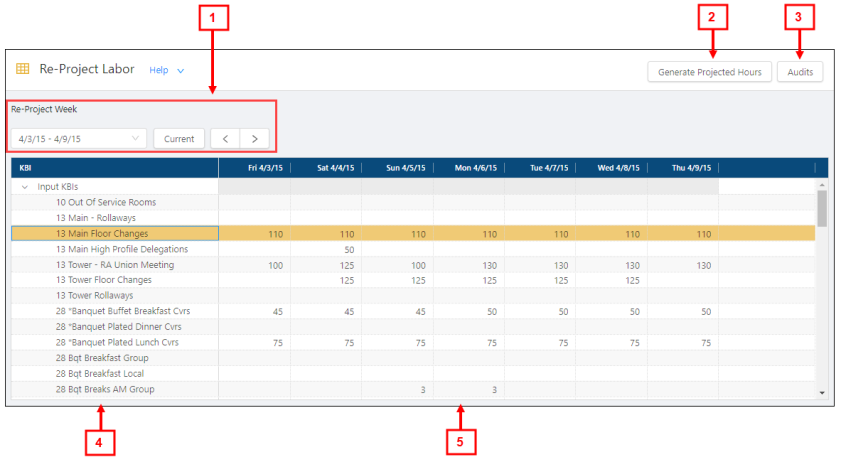
Fields on the Re-Project Labor screen
| # | Field | Description | Notes |
|---|---|---|---|
|
1 |
Re-Project Week controls | ||
|
Re-Project Week |
From the drop-down list, select the week for which you will project labor. |
|
|
|
Current |
Select the current week. |
|
|
|
Back/Forward |
Select the arrows to go to the previous or next. |
|
|
|
|
Buttons | ||
|
2 |
Generate Projected Hours |
Opens the Generate Projected Hours dialog so you can re-generate your projected hours. |
|
|
3 |
Audits |
Opens an Audits dialog box where you can see who changed the forecast (if applicable), when it was changed, and what the values were before and after the change. |
|
|
|
Table | ||
|
4 |
KBI |
Name of the KBI. |
Read-only. |
|
5 |
Weekdays in the Re-Project Week |
Select the appropriate day(s) and enter numerical values. |
The data shown depends on which week you selected. |
