Reporter screen
The Reporter screen consolidates all reports into a list view. Use this screen to view descriptions and previews of available reports, search for reports by tags or names, and access report configuration screens.
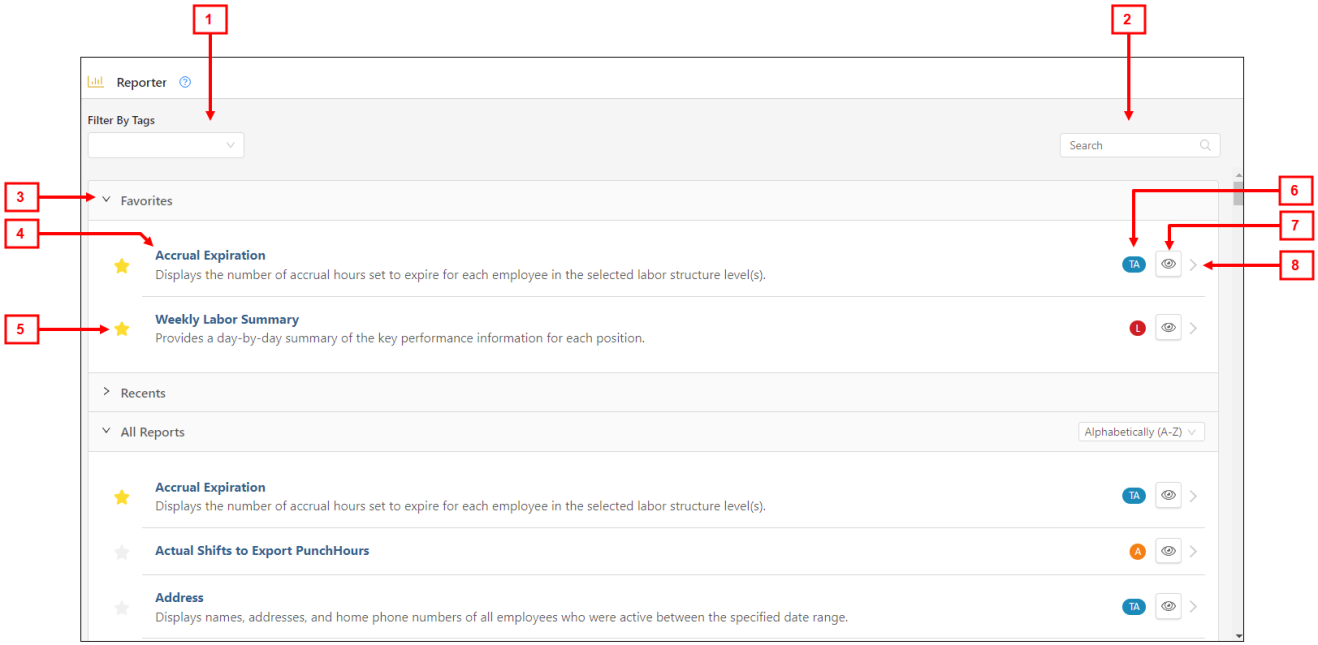
Fields for the Reporter screen
| # | Field | Description | Notes |
|---|---|---|---|
|
1 |
Filter By Tags |
Filter the screen by keywords that are associated with a group of related reports. Select an option from the drop-down list. To clear a selected filter, hover over the field and select the remove tag icon ( The first column of the drop-down list corresponds to the primary tags associated with the report. For example, selecting Labor filters the screen by all reports associated with the Labor (L) primary tag. The second column of the drop-down list corresponds to secondary tags, which further categorize the reports. For example, selecting Labor > Forecasting filters the screen by all Forecasting reports associated with the Labor (L) primary tag. |
|
|
2 |
Search |
Type either a report name or keyword to search for a specific report. |
|
|
3 |
Sections |
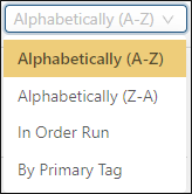
The Reporter screen contains three sections:
|
|
|
4 |
Report name and description |
The top line is the report name. The bottom line is a brief description of the report. Select the report name and description to open the report configuration screen in its own tab. |
|
|
5 |
Favorite |
A yellow star icon ( To remove favorite status, select the yellow star. The star turns gray ( |
|
| 6 |
Primary Tags |
Tag(s) associated with each report:
In the Filter By Tags drop-down list, you can filter the screen by the primary and secondary tags. |
|
| 7 |
Preview report |
Opens a preview window for the report. |
Previews are not available for all reports. |
| 8 |
Open report |
Opens the report configuration screen in a separate tab. |
 ).
). ).
).
 ), indicating that it is no longer a favorite.

