Manage Schedules for the Unifocus Mobile App
This page describes fields and controls on the Manage Schedules screens in the Unifocus Mobile App.
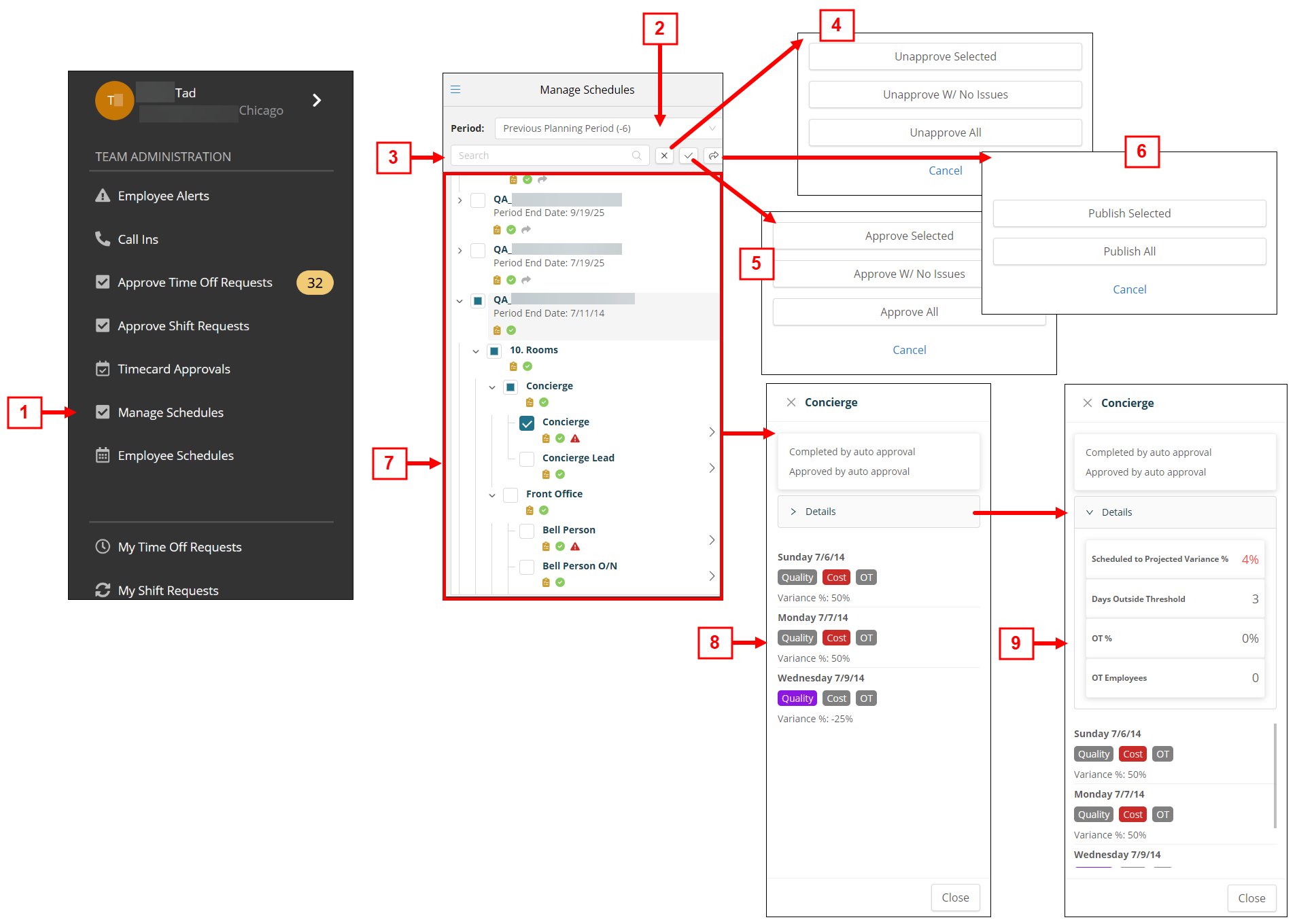
| # | Field | Description | Notes |
|---|---|---|---|
|
1 |
Manage Schedules |
Under the Team Administration section, select the Manage Schedules option to open the Manage Schedules screen. |
You only see this option if your company is using Schedule Approvals. |
|
2 |
Planning period selector |
Select the planning period to work with. |
|
|
3 |
Search |
Search by property name or labor structure level. The screen updates to match your search criteria. |
|
|
4 |
Unapprove |
Unapprove schedules. Options include:
|
This action is for managers who have permissions to approve and unapprove schedules. |
|
5 |
Approve |
Approve schedules. Options include:
|
This action is for managers who have permissions to approve and unapprove schedules. |
|
6 |
Publish |
Publish schedules. Options include:
|
This action is for managers who have permissions to publish schedules. |
|
7 |
Information about properties—This section displays a labor structure view of your organization. Use the expand ( Note: Colored icons (for example, |
||
|
Issue Indicator |
Indicates that there are issues with a job in the labor structure level. |
|
|
|
Schedule status |
The clipboard icon indicates schedule status. A gold clipboard ( |
||
|
Approval status |
The check mark icon indicates approval status. A white check mark in a gray circle ( |
|
|
|
Publication status |
The arrow icon indicates publication status. A gray arrow ( |
|
|
|
8 |
Daily job details |
At the job level, select the expand ( Issue types include:
|
|
|
9 |
|
Select the expand (
|
|


 ) and collapse (
 ) buttons to view labor structure levels.
 and
and  ) indicate that all lower-level items in a section have completed the task. Gray icons indicate that the task is only partially complete. No icon appears if the task has not been completed by any items in the section.


 )—The scheduling manager has scheduled too few hours, where the variance between the scheduled hours and the projected hours is outside of a configured threshold for under-scheduling. This is typically configured as 3% to 5% in most installations. So if the manager had scheduled too few hours or more than 5% below the projected hours, then the Quality indicator is colored purple and displays the number of related issues.
 )—The scheduling manager has scheduled too many hours above the projected hours outside of a configured threshold for over-scheduling. This is typically configured as 3% to 5% in most installations. So if the manager had scheduled more than 5% over the projected hours, then the Cost indicator is colored red and displays the number of related issues.
 )—This is a percentage of scheduled hours that are overtime (OT) hours. This threshold is configured based on the company's policy for acceptable scheduling of OT. For example, if the threshold is set to 3% and there are more than 3% scheduled hours are OT hours, then the OT indicator is colored blue and display the number of related issues.
 Details
Legacy Mobile App screen
The Unifocus Mobile App is currently being redesigned. If you do not see the screens shown above, you are using an older version of the app. Contact your Unifocus Client Success Manager (CSM) to turn on the new screens.
 Click here to view the documentation for the legacy Manage Schedules screen:
This page describes fields and controls on the Schedule Approval screens in the Unifocus Mobile App.
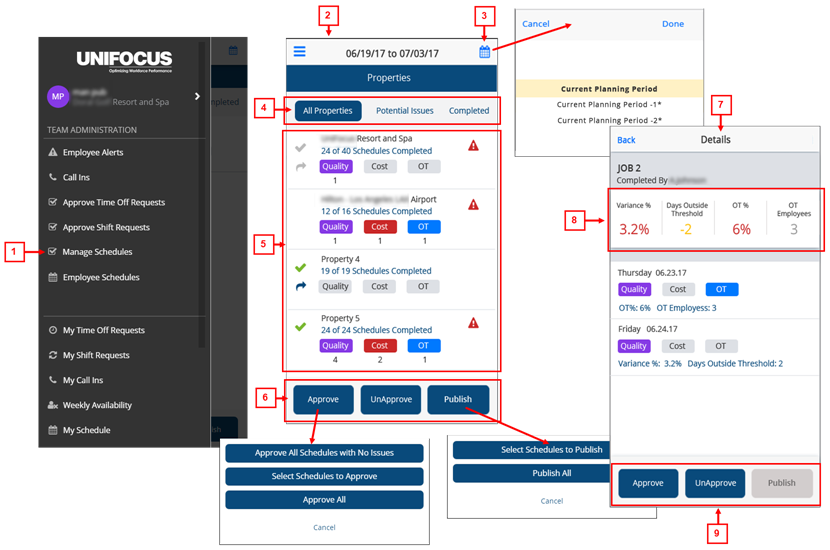
| # | Field | Description | Notes |
|---|---|---|---|
|
1 |
Manage Schedules |
Under the Team Administration section, select the Manage Schedules option to open the Schedule Approvals screen. |
You only see this option if your company is using Schedule Approvals. |
|
2 |
Properties screen |
|
|
|
3 |
Planning period selector |
Select the planning period to work with. |
|
|
4 |
Filter |
Filter the table by the following options:
|
|
|
5 |
Information about properties |
||
|
Issue Indicator |
Indicates that there are issues with a job in the labor structure level. |
|
|
|
Issue types |
The three issues types include:
|
|
|
|
Approval Status |
The check mark icon indicates approval status. A gray check mark icon ( |
|
|
|
Publish Status |
The arrow icon indicates publication status. A gray arrow icon ( |
|
|
| 6 |
Approve, UnApprove, Publish buttons |
||
|
Approve |
This action is for managers who have permissions to approve and unapprove schedules. Options include:
|
|
|
|
UnApprove |
This action is for managers who have permissions to approve and unapprove schedules. Options include:
|
|
|
|
Publish |
This action is for managers who have permissions to publish schedules. Options include:
|
|
|
|
7 |
Details screen for a selected job | ||
|
8 |
Aggregate information for planning period |
Information includes:
|
|
|
9 |
Button for the selected labor structure level |
||
|
Approve |
Approves schedules for the selected labor structure level. |
|
|
|
UnApprove |
Undoes the approved status of the selected labor structure level. |
|
|
|
Publish |
Publish schedules for the selected labor structure level. |
|
|


