Working with the Review Time Card screen
To access an employee's time card:
-
In the upper-left corner of the screen, select Access your applications (
 ).
).
The menu expands. -
Select T&A > Review Pay Period.
The Review Pay Period screen appears. -
Double-click an employee row.
The employee's Review Time Card screen opens in a separate tab.
Sorting and filtering
Filter by Errors
-
At the top of the Review Time Card screen, select the Errors tab.
Filter by Unapproved
-
At the top of the Review Time Card screen, select the Unapproved tab.
Configuring columns in the table
-
Select Columns (
 ).
). -
(Optional) Use the Search tool to locate a specific column. As you type in the field, the list updates to match your entry.
-
Do one of the following:
-
Select the check boxes for the columns you want to view in the table.
-
Clear the check boxes for the columns you want to remove from the table.
Your selections are applied automatically.
-
-
To close the column settings pane, select Columns (
).
Viewing additional details for a selected employee
At the bottom of the employee's Review Time Card screen is a row of tabs.
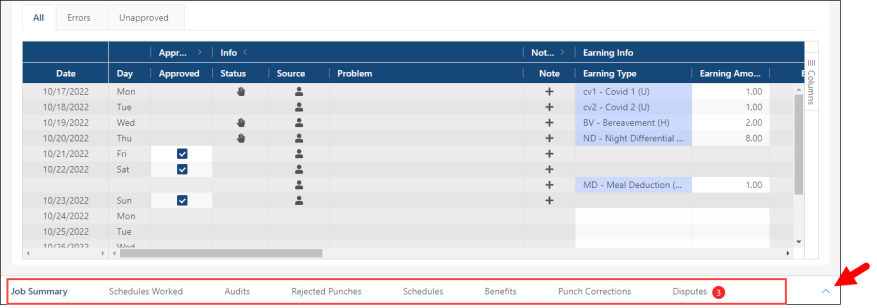
Expand ( ) the details pane below the Time Card table to view additional information for the selected employee.
For more information, see Working with the details section in an employee Time Card.