Swapping shifts in Employee Schedules
There are times when have to switch one employee's scheduled shift with another employee's shift. Swapping shifts allows you to make the switch without manually entering the information for both employees. For example, two employees have requested to work each other's scheduled shifts. Employee 1 is scheduled to work from 08:00-16:00 (8:00 AM–4:00 PM) and Employee 2 is scheduled to work from 12:00–20:00 (12:00 PM–8:00 PM). If you swap schedules, Employee 1 will work 12:00–20:00 (12:00 PM–8:00 PM) and Employee 2 will work 08:00–16:00 (8:00 AM–4:00 PM).
Note: You can only swap shifts that have the same job.
-
In the upper-left corner of the screen, select Access your applications (
 ).
).
The menu expands. -
Select Labor > Scheduling.
The Employee Schedules screen appears.Note: When you first access the Employee Schedules screen, you must select jobs for which to display scheduling information.
-
In the schedule pane, select an employee shift and drag it to another employee shift with which it will be swapped.
If the swap is allowed, the cell turns green.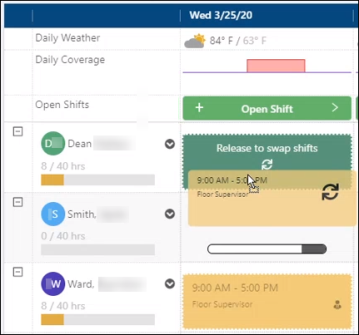
The two shifts are swapped.