Checking the Status of Unifocus Time Clocks
Your Unifocus Time Clock is plug and play based on the configuration information you provided to Unifocus. You can check the connectivity status of your Time Clock on the home screen of the Time Clock and in the RMS software.
Checking the status on the Time Clock home screen
The Time Clock login screen should look like the one below.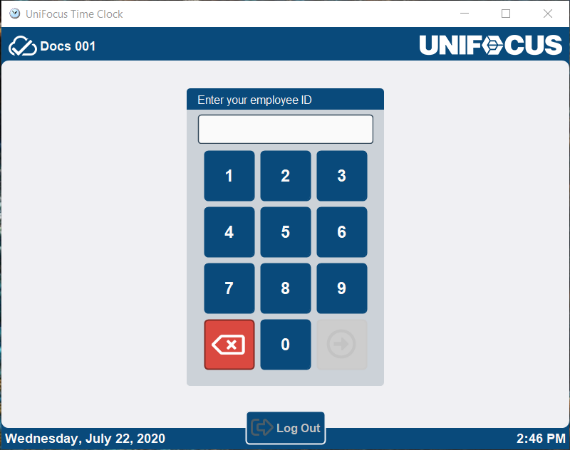
Notice the status icon on the upper left corner of the screen, next to the property name.

The following table provides descriptions of the types of status icons that can appear on the Time Clock screen.
Status icons
|
Icon |
Description |
|---|---|
|
Online |
This icon (a cloud with a check mark) indicates that the Time Clock is online and communicating with the Time & Attendance application. If the Time Clock loses connectivity, it still allows employees to clock in and out, but the Time Clock does not allow users to enroll employees because it needs to communicate with the Time & Attendance application for that function. |
|
Offline |
This icon (a cloud with a line through it) indicates that the Time Clock is offline and not communicating with the Time & Attendance application. The Time Clock still accepts employees’ punches and stores the punch information. As soon as connectivity is restored, all information stored locally by the Time Clock is updated in the Time & Attendance application. |
|
Software Upgraded |
This icon (a cloud with rotating arrows) indicates that the Time Clock software has been upgraded. Although the Time Clock is online and communicating with the Time & Attendance application, you must restart the Time Clock application and reboot the clock hardware to activate the upgrade. |


