Who Is In/Out
Use the Who Is In/Out screen to monitor which employees are currently punched in or out and for which jobs. In the Status column:
-
A solid person icon (
 ) indicates that the employee is punched in or returned to work from a break.
 -
A clear or unfilled person icon (
 ) indicates that the employee has punched out or is on a break.
Highlighted rows indicate that employees have clocked on-site and in to a job but are not scheduled to work.
By default, all employees are listed. Use the Filter or Search features to narrow down the list.
Note: Depending on your configuration and legal requirements, employees might have to clock on-site the moment they enter the property and wait to officially clock in to their jobs when they reach their work area. Unifocus Time Clocks can be configured to allow users to indicate whether they are on-site or off-site.
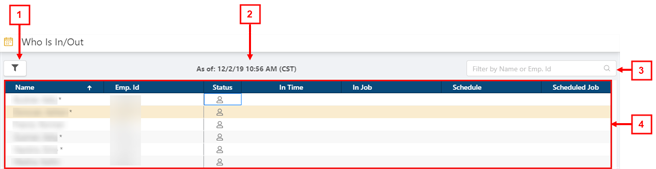
* Personally identifiable information has been obscured or altered in the above image.
Fields on the Who Is In/Out screen
| # | Field | Description | Notes |
|---|---|---|---|
|
|
Controls | ||
| 1 |
Filter |
Opens the Filter dialog box, where you can filter the list by specific criteria, such as:
|
|
|
2 |
As of: |
The date and time that the system last checked for employees' In/Out statuses. RMS runs a check each time the Who Is In/Out page loads. The date and time always reflect the time when the page was most recently opened. |
Read-only. |
|
3 |
Search |
Search by employee name or ID. Type the search criteria in the field. The table updates as you type. |
|
| 4 | Table | ||
|
Name |
Name of the employee. |
Read-only. |
|
|
Emp. ID |
Unique identification number of the employee. |
Read-only. |
|
|
Status |
In or out status:
|
Read-only. |
|
|
In Time |
Time the employee punched in. |
Read-only. |
|
|
In Job |
Job to which the employee is clocked in. |
Read-only. |
|
|
Schedule |
Shift times the employee is scheduled to work. |
Read-only. |
|
|
Scheduled Job |
Job the employee is schedule to work. |
Read-only. |
|
|
On Site |
Indicates that the employee has punched in as on-site. |
This column is only visible if the Time Clocks at your property are configured to allow users to indicate whether they are on- or off-site. |
|
|
Off Site |
Indicates that the employee has punched in as off-site. |
This column is only visible if the Time Clocks at your property are configured to allow users to indicate whether they are on- or off-site. |
|

 )—Indicates that the employee is clocked out or is out on a break.
 )—Indicates that the employee is clocked in or has returned to work from a break.
 )—Indicates that the employee is scheduled to work but has not punched in.
 )—Indicates that the employee is scheduled to work.
 )—Indicates that the employee is not scheduled to work.