Unifocus Chat (mobile)
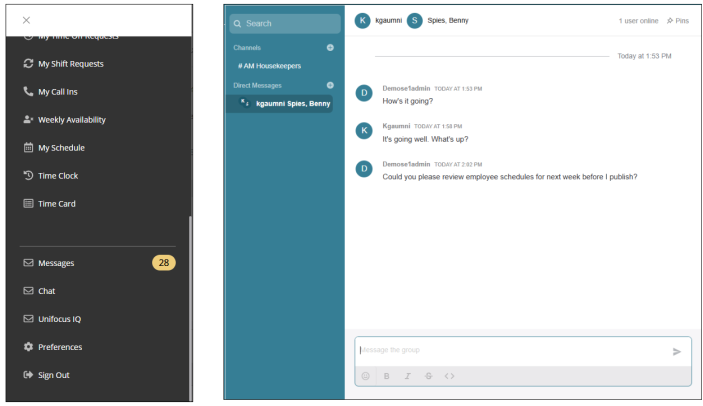
Unifocus Chat is a real-time messaging platform built into the Unifocus ecosystem, enabling seamless communication between employees, managers, and teams. Whether it’s a quick shift update, team announcement, or department-wide alert, communication happens where work happens.
This page covers the following topics
Accessing Chat from the Mobile App menu
-
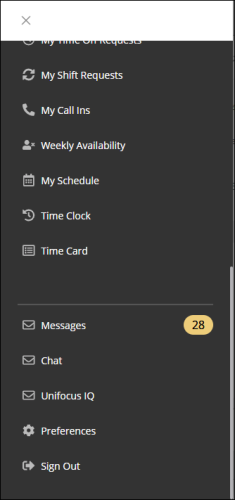
Tap Chat in the lower section of the mobile menu.
The Chat screen opens and displays your recent conversations.
Sending a message to an individual
-
In the Direct Messages section on the left side of the Chat pane, select the name of the user to whom you want to send a message. If necessary, you can search (
 ) for a user by name or login ID.
 -
In the text field, enter your message.
-
If necessary, you can attach a document by tapping the + button and choosing a file or photo to upload..
Note: Supported file types include PDF, JPG, PNG, XLSX, and DOCX. Maximum file size is 10 MB per file. All attachments are scanned for viruses and stored securely.
-
Select Send (
 ) to send the message.
Sending a group message
-
In the Direct Messages section on the left side of the Chat pane, select the add icon (
 ).
). -
To add or remove users to the group message, select or clear the Add or Remove radio button for users in the list.
-
In the Name field, enter a name for the group.
-
Select Create Message Group.
-
In the text field, enter your message.
-
If necessary, you can attach a document by tapping the + button and choosing a file or photo to upload..
Note: Supported file types include PDF, JPG, PNG, XLSX, and DOCX. Maximum file size is 10 MB per file. All attachments are scanned for viruses and stored securely.
-
Select Send (
) to send the message.
Working with channels
In Chat, channels are dedicated message spaces used to communicate with teams of users who share common goals, roles, projects, or responsibilities. Channels help organize conversations by topic, making it easier to collaborate and share information efficiently.
Adding a channel
-
In the Channels section on the left side of the Chat pane, select the add icon (
).
The Create a New Channel screen appears. -
In the Name field enter a name for the channel.
-
In the Manage Members sections, select or clear the Add or Remove radio button for users in the list.
-
Select Create Channel.
Your channel is created.
Sending a message in a channel
-
In the Channels section on the left side of the Chat pane, select the channel where you want to send a message.
-
In the text field, enter your message.
-
If necessary, you can attach a document by tapping the + button and choosing a file or photo to upload..
Note: Supported file types include PDF, JPG, PNG, XLSX, and DOCX. Maximum file size is 10 MB per file. All attachments are scanned for viruses and stored securely.
-
Select Send (
) to send the message.
Configuring notifications
-
Push Notifications (Mobile)—Enable through your phone’s settings to receive real-time alerts.