Filtering your view in Housekeeping Dashboard
Accessing the Housekeeping Dashboard
From the main menu on the left side of the screen, select the Housekeeping ( ) > Housekeeping Analytics.
The HOUSEKEEPING ANALYTICS screen opens to the Housekeeping Dashboard.
Filtering the charts view
Select the following options as necessary:
-
To select the property: From the Property drop-down menu, select the checkboxes of the properties to include, then select Apply Selection. Clear checkboxes of properties to exclude. If necessary, you can search for properties by entering text in the Search Values (
 ) field.
 -
To specify the time frame for which to view data: Enter the dates in the Start Date and End Date fields or select the dates from the calendar menus.
- For additional options, select the vertical ellipsis (
 ) icon next to the End Date field and select one of the options from the resulting drop-down list:
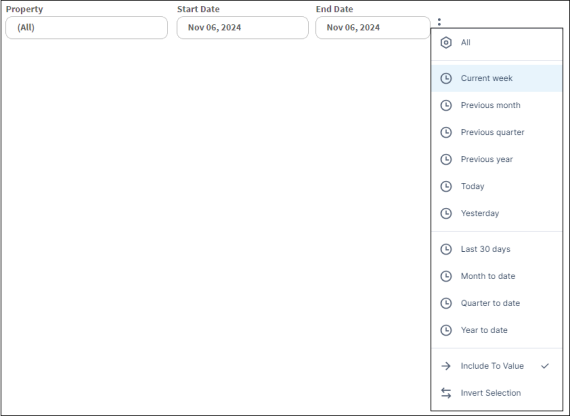
All—Displays all data without any filters, including all available data across the selected time frame, location, or parameters.
Current week—Displays the data from the beginning of the current week (starting from the most recent Sunday) up to the present day.
Previous month—Sets the time frame to view data for the entire previous month.
Previous quarter—Displays data for the last complete calendar quarter based on the current date.
Previous year—Displays the data from the entire year prior to the current year. For example, if the current year is 2024, the previous year data would cover the full period from January 1, 2023, to December 31, 2023.
Today—Displays data for the current date.
Yesterday—Sets the time frame to view data for only yesterday.
Last 30 days—Displays data for the last 30 days.
Month to date—Displays data from the beginning of the current month to the present date.
Quarter to date—Displays data from the start of the current quarter to the present date.
Year to date—Displays data for the current year, from January 1st to the present date.
Include To Value—If selected, charts will include data from the date in the End Date field. If not selected, charts will include data only up to the date in the End Date field. For example, if the Start Date is 2023/08/24 and the End Date is 2023/08/30, selecting Include To Value will include data on 2023/08/30. If not selected, then the data will not include 2023/08/30.
Invert Selection—Displays all the data except for the selected filter criteria. For example, if you select Previous Month and then Invert Selection, it shows all the data except for the previous month’s data.