Staff Health Console screen
The screen shows all user profiles. Users who have submitted their assessment for the day will have either a Pass or a Fail icon displayed. You can view the answers to all questions. The failed answers appear in red text.
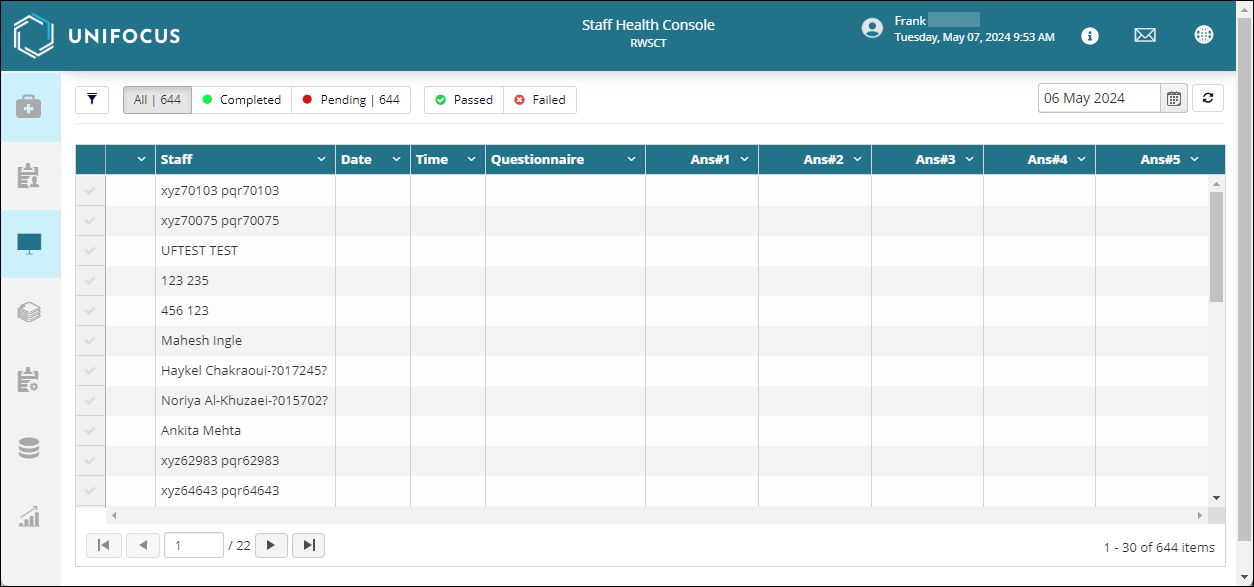
Fields on the Staff Health Console screen
| Field | Description | Notes |
|---|---|---|
|
Filter |
Select the filter to open search fields for each column in the table. |
|
|
Status filters |
Select to filter by assessment status:
|
|
|
Dates selector |
Either enter a date in the field for select a date from the calendar menu. |
|
|
Refresh |
Refresh the screen. |
|
| Table—The columns that appear in the table depend on your assessment configuration. Select column headers to sort. | ||
|
Staff |
Name associated with the staff. |
|
|
Date |
Date when the assessment was submitted. |
|
|
Time |
Time when the assessment was submitted. |
|
|
Questionnaire |
Title of the questionnaire. |
|
|
Ans# |
Number of answers. |
The number of answers depend on your configuration. |
|
Page selectors |
Controls include:
|
|
| Total number of items |
Displays the total number of items on the current page out of all items. |
Read-only. |



 )—Go to the first page.
 )—Go to the previous page.
 )—Displays the current page out of the total number of pages.
 )—Go to the next page.
 )—Go to the last page.