Cleaning Progress screen
The Cleaning Progress screen is available from the Coordinator's Desk menu of Housekeeping.
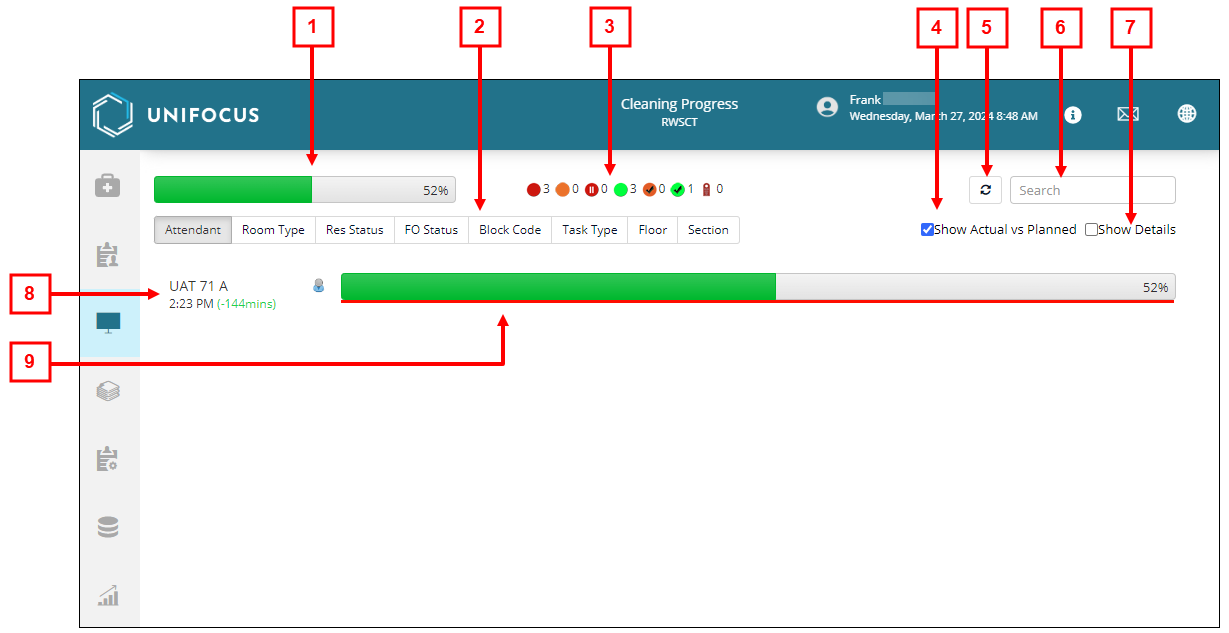
Fields on the Cleaning Progress screen
| # | Field | Description | Notes |
|---|---|---|---|
|
1 |
Task completion progress bar |
Shows the overall percentage of task completion. |
Read-only. |
|
2 |
Filters |
Filters allow you to filter the screen by:
|
|
|
3 |
Task status filters |
The icons and numbers indicate the number of attendants in the following statuses:
Select an icon to filter the screen by the status. |
|
|
4 |
Show Actual vs Planned |
Update the screen to show actual vs. planned statuses in the individual task status progress bars. |
|
|
5 |
Refresh |
Refreshes the screen. |
|
|
6 |
Search |
Search by attendant name or room number. |
|
|
7 |
Show Details |
Expand all individual task status progress bars to display the attendant task sheet in the form of schematic room blocks, which show the individual room statuses. |
|
|
8 |
Status details |
Details for the selected status type. |
Read-only. The displayed details depend on the selected status. |
|
9 |
Individual task status |
A green bar indicates progress in terms of percentage of tasks completed, based on the number of rooms allotted to an individual attendant in a particular shift. The line underneath the green progress bar indicates whether the room attendant is behind schedule (red) or ahead of schedule (purple). The red/purple bar indicates where the room attendant should be. This calculation is based on the configured cleaning time of each task, break time, and starting time of the first room. Select the progress bar to display the attendant task sheet in the form of schematic room blocks, which show the individual room statuses. |