Lost & Found screen
The Lost & Found screen is available from the Coordinator's Desk menu of Housekeeping.
Reported items appear in the console for the business day or for the selected date range. For any item, an automatically generated reference number item appears in the following flow:
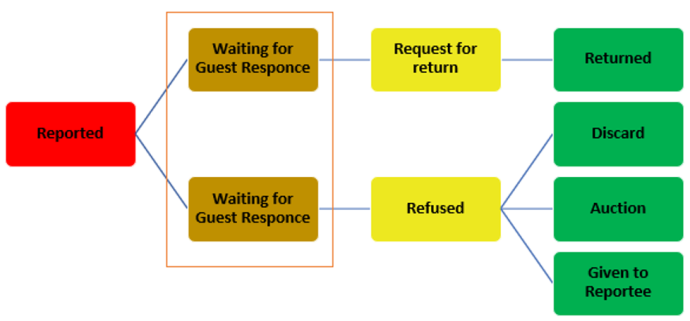
You can skip the Waiting for Guest Response stage, which appears only if guest intimation is used. Although you can add notes at any stage to further supplement information, they will not change the status. By using the filters, you can choose to filter either on all Open or Closed statuses or a more precise sub-status.
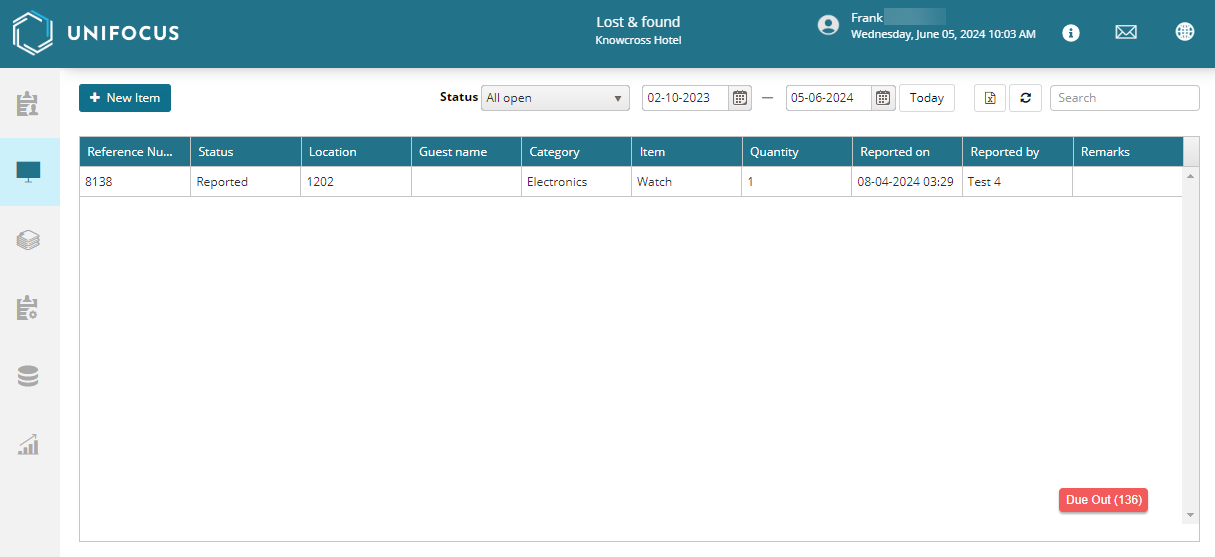
Fields on the Lost & Found screen
| Field | Description | Notes |
|---|---|---|
| Controls | ||
|
New Item |
Opens the Lost & Found Item pane where you submit a record for a new item. |
|
|
Status |
Filter the screen statuses. |
|
|
Date selectors |
Includes:
|
|
|
Export |
Export the filtered screen to an XLSX file. |
|
|
Refresh |
Refresh the screen. |
|
|
Search |
Search by text or number values. |
|
| Table | Right-click rows to edit information. | |
|
Reference Number |
Reference number associated with the record. |
Read-only. |
|
Status |
Status of the record. |
Read-only. |
|
Location |
Location where the item was found. |
Read-only. |
|
Guest Name |
Name of the guest associated with the room, if applicable. |
Read-only. |
|
Category |
Category of the item found. For example, medicine, currency, and so on. |
Read-only. |
|
Item |
Name of the item found. |
Read-only. |
|
Quantity |
Number of items found. |
Read-only. |
|
Reported On |
Date when the item was found and reported. |
Read-only. |
|
Reported By |
Name of the attendant who found the item. |
Read-only. |
|
Remarks |
Comments about the item. |
Read-only. |

