Edit Master Budget Structure screen
This screen is used to configure your master budget structure to allow for common naming in above-property reporting. With these common names, you will be able to compare individual lines for the same item when individual properties have different naming structures.
Note: The structure and items that you build on this screen do not affect the dollar values. The grouping and detail lines do not display costs.
Tasks performed from the Master Budget Structure screen:
-
Searching in the master budget structure
-
Adding a new folder to the master budget structure
-
Reordering the master budget structure
-
Cutting and pasting budget lines
-
Deleting a budget line
-
Assigning a percentage calculation to a master budget line
For more information on tasks, see Working with the Edit Master Budget Structure screen.
Fields and controls on the Edit Master Budget Structure screen
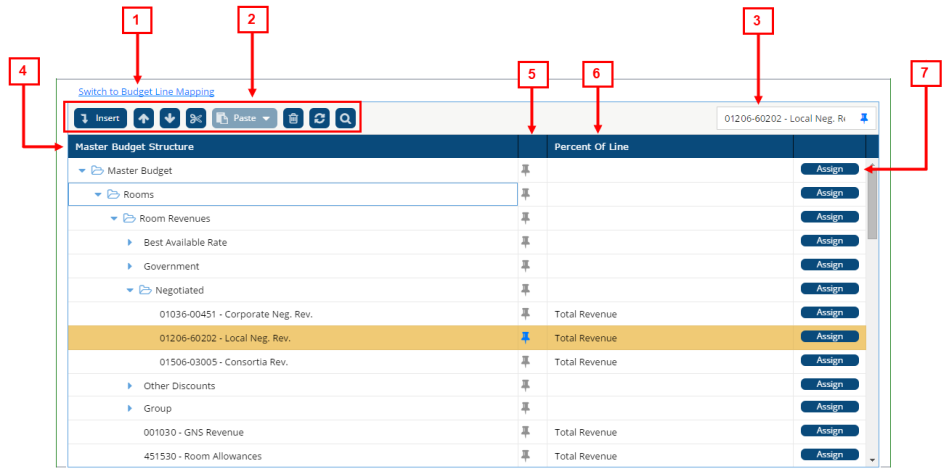
* Personally identifiable information has been obscured or altered in the above image.
| # | Field | Description | Notes |
|---|---|---|---|
|
1 |
Switch to Budget Line Mapping |
Click this link to go to the Map Property Budget Lines to Master Budget Lines screen. |
|
|
2 |
Edit Master Budget Structure controls |
Use these controls to insert, cut, paste, and move items in the Master Budget Structure tree menu. |
|
|
Insert |
Creates a line under the highlighted line. If no line is selected when clicking Insert, the new line appears at the bottom of the tree menu. |
|
|
|
Move up |
Moves a selected line up one level in the tree menu. |
This button is available only if a line is selected. |
|
|
Move Down |
Moves a selected line down one level in the tree menu. |
This button is available only if a line is selected. |
|
|
Cut |
Cuts a selected line. |
This button is available only if a line is selected. |
|
|
Paste |
Insert a cut line. Options include:
|
This button is available only if you have already cut a line. |
|
|
Delete |
Deletes a selected line. |
|
|
|
Refresh |
Refreshes the screen. |
|
|
|
search |
Opens a search field where you can search for an account name. |
After clicking the Search button ( |
|
|
3 |
Pinned item field |
This field displays the line that you have selected to be assigned as a percentage calculation to another line. By default nothing is selected.
Once you pin a line, the name of the line appears in the field.
You must pin a line before you can assign it to another line. |
Default: Nothing selected.
|
|
|
Master Budget Structure | ||
|
4 |
Master Budget Structure |
The master budget structure is organized as a tree menu that comprises grouping lines and detail lines. A grouping line contains child items. A detail line does not contain child items.
A detail line can become a grouping line by inserting into it. A grouping line can become a detail line by deleting all of its child items. The lines in the Master Budget Structure are never used to display costs. They are only used for organizing the budget at the corporate level. |
|
|
5 |
Pin button |
Button for assigning a percentage calculation to a master budget Click the gray pin button ( |
|
|
6 |
Percent Of Line |
If text appears in these cells, a percentage calculation has been applied to the lines. |
|
|
7 |
Assign button |
Once a line has been pinned ( |
These buttons are active only if a line has already been pinned ( |


 ) remains on the screen.

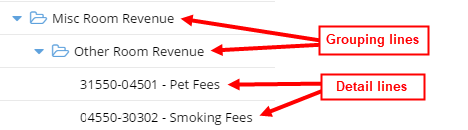

 ).
).