Entering formulas in Forecast Structure
When you select Calculated from the Type drop-down list in the General tab of the Forecast Structure screen, the Formula tab containing the formula building buttons become available. You can manually create a formula by using the Insert KBI, Insert Operator, and Insert Function buttons, or you can use the Formula Builder button. Selecting the Formula Builder button launches a wizard that provides a combination of the other three function buttons and guides you through a logical progression of steps. Once you have become familiar with the syntax of creating calculated KBIs, you can manually enter the formula directly into the Formula field.
Note:Unifocusrecommends using the Formula Builder to create formulas. Using the Formula Builder will ensure that you are using the correct syntax.
To enter formulas for a KBI:
-
In the upper-left corner of the screen, select Access your applications (
 ).
).
The menu expands.
-
Select Setup > Forecast Structure.
The Forecast Structure screen appears. The KBIs view is the default view for the screen.
-
In the Forecast Structure menu pane, select KBI (
 ).
).
The KBIs view appears.
-
Do one of the following:
If you are adding a new KBI:
In the KBIs section, select the Add KBI (
 ) button.
The Add KBI dialog box appears.Complete the fields in the Details section.
 Click here for field descriptions.
Fields on the KBI Details section
Field Description Notes Name
Name of the KBI.
Required.
Code
Code associated with the KBI.
Required.
Master Code
Allows a corporate user to assign one code for multiple KBIs that are common to the company but labeled differently at the property level.
Show In
The software module in which the KBI is shown.
Units
Unit of measure associated with the KBI.
If you are editing an existing KBI:
In the KBIs section, select the KBI that you want to edit. If necessary, expand (
 ) the tree menu or use the Search (
 ) field to find the KBI.
The Details and KBI Set Config sections update based on your selection.
-
In the KBI Set Config section, do the following:
-
To add general formula:
From the Type drop-down list, select Calculated.
The Formula tab appears.Select the Formula tab.
Click here for field descriptions.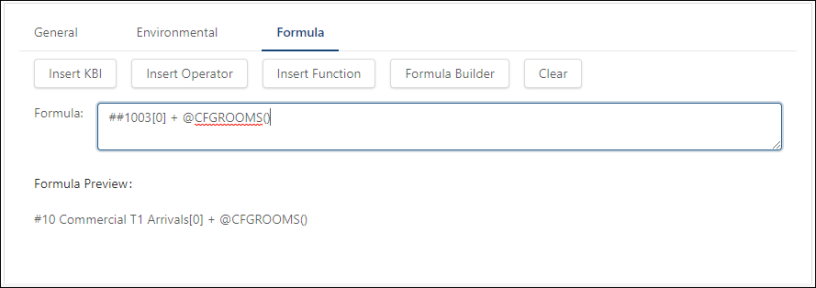
Fields on the Formula tabs (Formula, Labor Formula, Budget Formula) of the KBI Set Config section
Field Description Notes Formula buttons Insert KBI
Build your formula by choosing KBIs from a list. The fields in the resulting dialog box include:
Search—Search for a KBI.
Table—Table of available KBIs:
KBI Name—Name of the KBI.
Code—Unique identification code associated with the KBI.
Item In Use—Whether the KBI is in use. Check marks appear next to KBIs (including nested KBIs) that have already been included in the current formula. This indicator prevents you from unintentionally duplicating the use of a KBI in a formula.
Note: An information icon (
 ) with a tooltip indicates whether KBIs are already included with the same Days Offset in the current formula.
Days to offset—Once you have selected a KBI, there are three choices for the value you want to give it:
Previous day's value [expressed as a negative number].
Current day's value [expressed as 0].
Future day's value [expressed as positive numbers 1,2,3, and so on].
Insert Operator
Enter the type of operation you want to perform:
Addition ( + )
Subtraction ( − )
Multiplication ( * )
Division ( ⁄ )
Modulo ( % ) (divide and return the remainder)
Insert Function
Choose from a predefined set of functions. Depending on the function you choose, different dialog boxes appear.
Formula Builder
Opens a wizard that guides you through the steps of building a formula. The Formula Builder works best when creating new formulas rather than editing existing formulas.
A KBI Value—Choose a KBI to insert into the formula.
A Special Function—Choose a function to insert into the formula.
Numeric Constant—Use a specific number in the calculation.
Note:Unifocus recommends using the Formula Builder to create formulas. Using the Formula Builder will ensure that you are using the correct syntax.
Clear
Clears the formula field to start over.
Note: This function clears the whole field, not just a portion of the formula.
Formula display Formula field
Displays the complete, editable formula that you build using the buttons. You can manually edit the formula in this field.
Formula Preview
Displays the complete, read-only formula that you build using the buttons.
Read-only.
-
To add separate formulas for KBIs related to the Labor and Budgeting modules:
From the Type drop-down list, select Separate.
The Labor Formula and Budget Formula tabs appear, and the Calculated option is automatically selected in the Type fields of the Labor and Budgeting sections.Select the Formula tab.
See the table above for field descriptions of the Formula tab.
-
-
To enter formulas:
To manually build a formula, complete the steps below:
Select Insert KBI.
The Insert KBI dialog box appears.Select a KBI from the KBIs list.
Enter a value for the Days to offset.
Once you have selected a KBI, there are three offset value variations:A previous day's value is expressed as a negative number (−1,−2, −3, and so on).
The current day's value is expressed as 0.
A future day's value is expressed as positive numbers (1,2,3, and so on).
Select Insert.
The KBI number is displayed in the Insert KBI area.Select Insert Operator and choose the type of operation you want to perform.
Select Insert.
The operation type is displayed in the Formula area.(Optional) To insert functions:
Select Insert Function
The Insert Function wizard appears.
For more information, seeCalculated KBI functionsComplete the screens in the wizard.
To use the formula builder, complete the steps below:
Select Formula Builder.
The wizard appears.Complete the fields as necessary.
The wizard closes when you have completed the last step.
-
If necessary, to add formulas for different KBI sets, select an option from the KBI Sets drop-down and repeat the steps above.
Note: You can also configure KBI in the Market Groups and Revenue Centers views for Forecast Structure. In each view, expand ( ) the tree menu until you get to the KBIs associated with the market groups or revenue centers.