Multiple Glitches tab on the New glitch screen
The Multiple Glitches tab appears when you select the Add multiple ( ) icon on the New glitch screen. This tab displays information for all glitches that will be registered when you select the Register button.
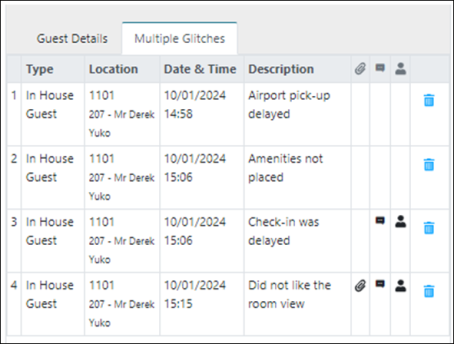
Columns on the Multiple Glitches table
| Column | Description | Notes |
|---|---|---|
|
# |
Number of the glitch. |
Read-only. |
|
Type |
Source type, such as:
|
Read-only. |
|
Location |
Name or number of the room where the glitch occurred. |
Read-only. |
|
Date & Time |
Date and time when the incident occurred. |
Read-only. |
|
Description |
A description of what happened. |
Read-only. |
|
Attachments |
If the glitch contains an attachment, a paperclip icon appears in the cell. |
Read-only. |
|
Remarks |
If the glitch contains remarks, a speech bubble icon appears in the cell. |
Read-only. |
|
Staff involved |
If an employee was directly involved or present at the time of the incident, a person icon appears in the cell. |
Read-only. |
|
Delete |
Select the trash can icon to delete the glitch. |
