Sorting and filtering the Who Is In/Out screen
Accessing the Who Is In/Out screen
- In the upper-left corner of the screen, select Access your applications (
 ).
).
The menu expands. -
Select T&A > Who Is In/Out.
The Who Is In/Out screen appears.
For a description of the user interface, seeWho Is In/Out.
Note: The table updates automatically according to your selections. Select any area outside of the Filter dialog box to return to the Who Is In/Out screen.
Sorting the employee list
-
In the employee list, select a column header to sort the list by the selected column.
The arrow ( ) indicates whether the list is sorted by ascending or descending order.
Searching for an employee
-
To quickly find a specific employee, type the employee's name or employee ID number into the Search field.
The employee list updates based on your entry.
Filtering employees
-
At the top of the Who Is In/Out screen, select the Filters icon (
 ).
).
The Filters dialog box appears. -
Complete the fields as necessary.
 Click here for field descriptions.
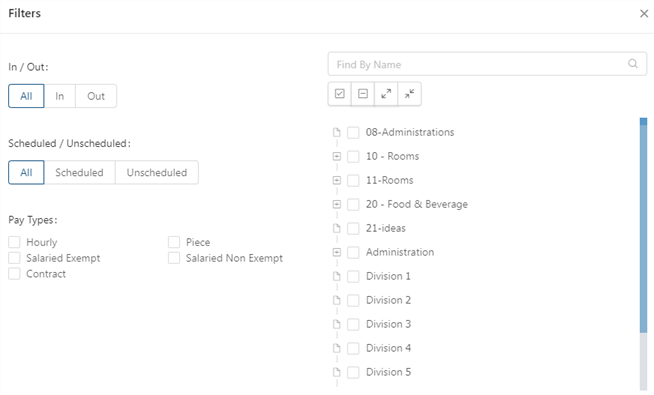
Fields for the Filter dialog box on the Who Is In/Out screen
Field Description Notes In/Out
Select one of the following options:
-
All—Display all employees.
-
In—Display only employees who are punched In.
-
Out—Display only employees who are punched Out.
Default: All
Scheduled/Unscheduled
Select one of the following options:
-
All—Display all employees.
-
Scheduled—Display only employees who are currently scheduled.
-
Unscheduled—Display only employees who unscheduled.
Default: All
Pay Types
Select the check boxes to view one or more Pay Types:
-
Hourly
-
Salary Exempt
-
Salary Non Exempt
-
Contract
-
Piece
Job tree menu
Tree menu of organization levels.
-
Expand ( + ) or collapse ( - ) rows to search through the job tree.
-
Select the box next to the division, department, or job that you would like to include in the filtered results.
If necessary, use the following controls to filter the tree menu:
-
Search (
 )—Begin typing search criteria into the field. The job tree actively updates to show only organization levels matching your entry
 -
Select All (
 )—Selects all divisions, departments, and jobs.
 -
Clear All (
 )—Clears the check boxes of all divisions, departments, and jobs.
 -
Expand All (
 )—Expands the job tree to show all organization levels.
 -
Collapse All (
 )—Collapses the job tree to show only the top level organization layer.
Your selections are automatically saved, and the screen updates according to your selections.
-
-
Select the Close button (
 ) to close the dialog box.