Viewing and acknowledging notifications
You can view notifications in either the Alerts pane or the Notifications Log screen.
Viewing and acknowledging notifications in the Alerts pane
-
In the upper-right corner of any RMS screen, select Alerts (
 ).
).
The Alerts pane opens. The Notifications section appears at the top of the pane. If a notification must be acknowledged by a specified date and time, that information will appear in the upper-right corner of the notification card.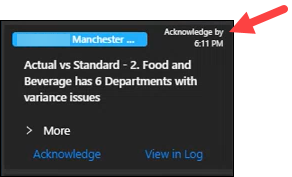
Note: Notifications remain in the Alerts pane for a configurable number of days. (The default is seven days.) Notifications are stored permanently in the Notifications Log screen.
-
Select a notification.
-
To view additional details, select > More.
The notification card expands to display additional read-only information. -
To acknowledge the notification, select Acknowledge.
A confirmation message appears. The notification then disappears from the Alerts pane.
Viewing and acknowledging notifications in the Notifications Log screen
The Notifications Log screen displays the list of all sent and/or received notifications. You can access the Notifications Log screen from either the Alerts pane or the RMS main menu.
Accessing the Notifications Log from the Alerts pane
From the Alerts pane, you can open a notification in the Notifications Log screen.
-
In the upper-right corner of any RMS screen, select Alerts (
).
The Alerts pane opens. The Notifications section appears at the top of the pane. -
At the bottom of the card for the notification that you want to open, select View in Log.
The Notification Log screen opens in a separate tab. The selected notification is highlighted in the Notifications Log screen. If acknowledgment is required, an Acknowledge button appears next to the View Details button. -
If acknowledgment is required, select Acknowledge.
The Acknowledge button disappears.
Accessing the Notifications Log from the RMS main menu
Use this method to directly open the Notifications Log and find a notification in the list.
-
In the upper-left corner of the screen, select Access your applications (
 ).
).
The menu expands. -
Select Notifications > Notifications Log.
The Notifications Log screen appears.
-
To find a specific notification, use the filter and search options at the top of the screen. If acknowledgment is required for a notification, an Acknowledge button appears next to the View Details button.
-
If acknowledgment is required, select Acknowledge.
The Acknowledge button disappears.