Sending a guest notification
On the Today's Arrival(s) screen of Housekeeping's Coordinator's Desk module, you can send a notification to a guest.
-
From the main menu, select the Housekeeping (
 ) option.
The Housekeeping Dashboard screen appears. -
From the menu pane on the left side of the screen, select Coordinator's Desk> Today's Arrival(s).
The Today's Arrival(s) screen appears.
-
If necessary, use the Search field or sort the table by column headers to find the guest.
-
Right-click the row for the guest and select Send Guest Notification.
The Send Guest Notification pane opens.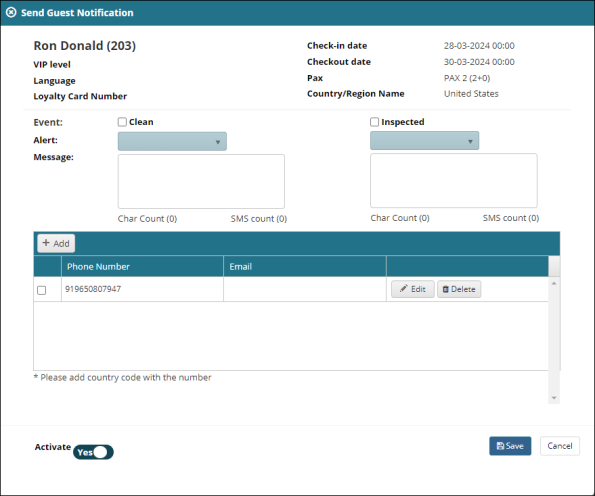
-
From the Event options, select whether you would like notifications to be sent for Clean and/or Inspected statuses.
-
From the Alert drop-down lists, select the alert types associated with the event(s).
-
In the Message text boxes, enter the messages that the guest will receive.
-
In contact information section, enter a Phone Number and/or Email for the recipient.
-
Next to the contact information that you just entered, select Update.
-
If necessary, select +Add to add another row for contact information and repeat steps 8 and 9.
-
Select the checkboxes for the contact information you want to activate and set the Activate switch to Yes.
-
Select Save.
For more information, see Today's Arrival(s) screen.