Setting data permissions for a group
Use the Data Permissions tab of User Administration to control group access to user-configurable data items in your organization. These data items include market groups, earning types, KBIs, and so on.
-
In the upper-left corner of the screen, select Access your applications (
 ).
).
The menu expands. -
Select Administration > User Administration.
The User Administration screen appears.
-
In the menu pane on the left, select Manage Groups (
 ).
). Click here for field descriptions.
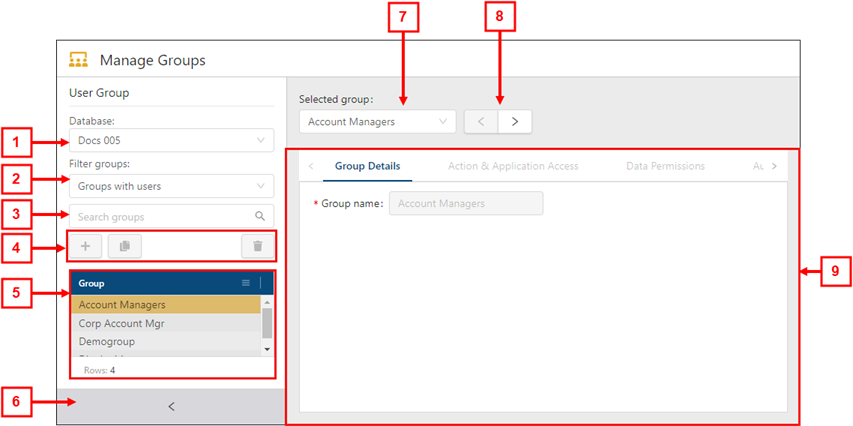
Fields on the Manage Users view of the User Administration screen
# Field Description Notes 1
Database
Select a database to view groups associated with the selected database.
2
Filter groups
Filter the User Group list to display only groups with users or groups without users.
Default: Groups with users.
3

Search groups
Type your search criteria in the field. The table automatically updates to meet the search criteria.
4 User Group controls Add, clone, or delete a group.
-
Add Group (
 )—Create a new group.
 -
Clone Group (
 )—Create a new group by making a copy of an existing group.
 -
Delete Group (
 )—Delete the selected group.
5
User Group list
Displays all existing user groups. Select a group to view details in the tabs.
6
 /
/ 
Expand / Collapse
Expand or collapse the User Groups pane.
7
Selected group
Displays the name of the selected user group. From the drop-down list, you can select a different user group to view details.
8
 /
/ 
Previous / Next
View details for the previous (
) or next () user group in the list.
9
Tabs
Navigate the tabs to view or edit details for the selected group.
-
Group Details
-
Action & Application Access
-
Data Permissions
-
Authorization Levels
-
Labor Structure Permissions
-
Budget Lines Access Rights
The available tabs depend on which view you are using.
-
-
From the Group list, select the group for which to set data permissions.
Details for the selected group appear in the right pane. -
Select the Data Permissions tab.
Click here for field descriptions.
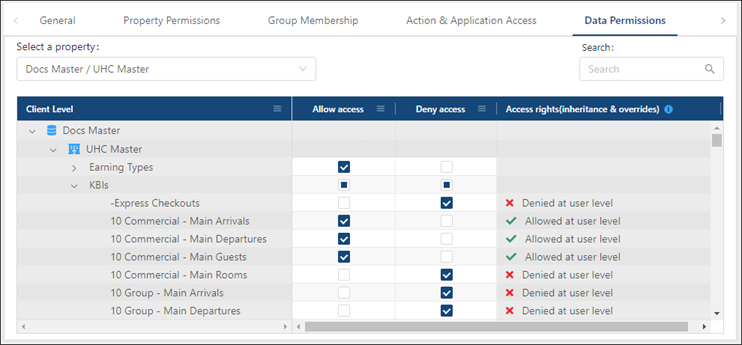
The image above shows the Data Permissions tab for the Manage Users view.
Fields on the Data Permissions tab of User Administration
Field Description Notes Controls
Select a property
From the drop-down menu, select the database and property with which this user or group is associated.
The default property is the property associated with the default database for the selected user or group.
Search
Enter a permission in the field. The table updates to match your selection.
Table
Client Level
Organized by database (
 ) and property (
  ), this tree menu displays a list of user-configurable data items—such as market groups, earning types, KBIs, and so on—in all the products you own.
A group icon (
 ) appears next to permissions that were inherited from the group.
Allow access
Give access to specific items and sections of items for this user or group. You are not required to make a selection for each item.
-
(
 )—User or group is granted access.
 -
(
 )—User or group is denied access.
 -
(
 )—User or group has mixed permissions. Expand child rows to view which items the user does and does not have access to.
If you neither Allow or Deny a user or group to access an item, by default, the user or group will not have access to that item.
Deny access
Deny access to specific items and sections of items for this user or group. You are not required to make a selection for each item.
-
(
)—User or group is denied access. -
(
)—User or group is granted access. -
(
)—User or group has mixed permissions. Expand child rows to view which items the user does and does not have access to.
If you neither Allow or Deny a user or group to access an item, by default, the user or group will not have access to that item.
Access rights (inheritance & overrides
Access rights at each level, including all group-level and user-level permissions.
Read-only.
This column appears only in the Manage Users (
 ) view.
 -
-
If necessary, use the Select a property menu to change the property and/or the Search (
) field to filter the tree menu in the table. For more information, see Working with tabs in User Administration. -
In the row of the Client Level for which to set a data permission, select one of the following:
Allow access—Allow the selected group to access to data permissions for the client level.
Deny access—Deny the selected group access to data permissions for the client level.
Your updates are saved automatically.
There are three states for check boxes:
()—Selected.
()—Cleared.
()—Mixed permissions. Expand child rows to view permission settings for child items.