Sorting and filtering the Manage Time Clocks screen
You can search and filter the Manage Time Clocks screen to view specific Time Clocks at your property.
Accessing the Manage Time Clocks screen
- In the upper-left corner of the screen, select Access your applications (
 ).
).
The menu expands. -
Select T&A > Manage Time Clocks.
The Manage Time Clocks screen appears.
For a description of the user interface, see Manage Time Clocks.
Sorting the table
-
Select a column header to sort the list by the selected column.
The arrow ( ) indicates whether the list is sorted by ascending or descending order.
Searching the Time Clocks
-
In the Clock Name or IP Address (
 ) field, enter the name of the Time Clock or the Time Clock's IP Address.
The table updates based on your entry.
Filtering the Time Clocks
-
In the upper-left corner of the screen, select the filter drop-down menu.
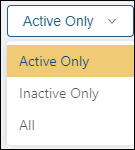
The drop-down menu expands. -
Select one of the following:
-
Active Only—View only the Time Clocks with an Active status.
-
Inactive Only—View only the Time Clocks with an Inactive status.
-
All—View all Time Clocks at the property, active, and inactive.
-
Note: Time Clocks can be made active or inactive in Setup > Time Clocks.