Tip Pool Types screen
Tip pools are a collection of tip-based earnings that you can distribute among employees based on various factors, such as the job or number of hours worked. For example, wait staff are traditionally the recipients of tips at a restaurant. However, it takes a team of people to provide optimal service to the guests, including hosts/hostesses, bartenders, and table bussers. Because many employees contributed, you might want to distribute those tips among all employees who worked the shift.
Note: After you configure tip pool types in Setup, you can begin distributing tips from the Tip Pools screen in theTime & Attendance module of RMS.
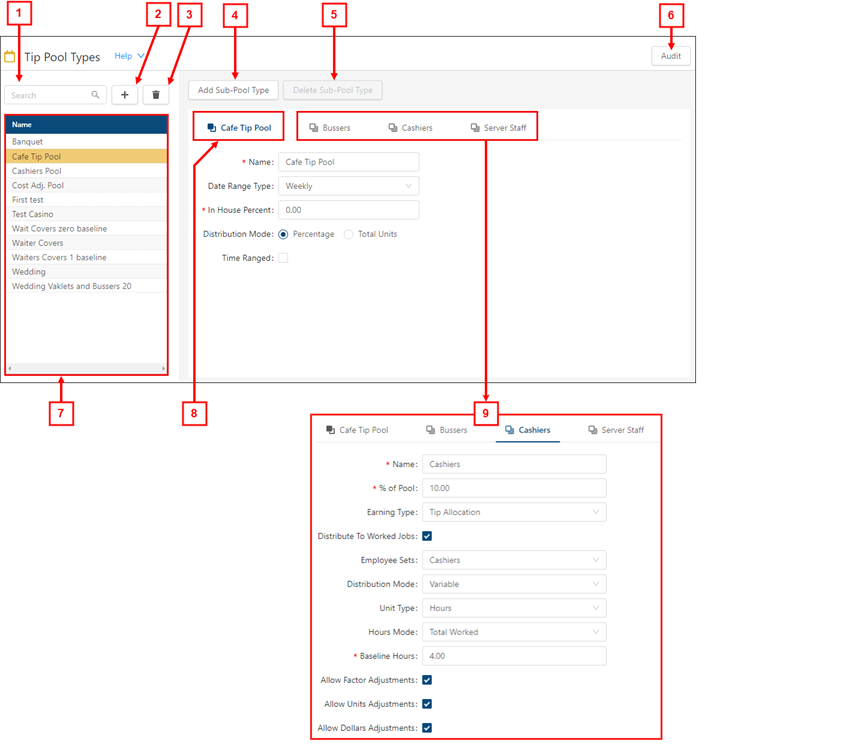
Fields on the Tip Pool Types screen
| # | Field | Description | Notes |
|---|---|---|---|
|
|
Controls | ||
|
1 |
Search |
Search the list for an existing tip pool type. As you type, the list updates based on your entry. |
|
|
2 |
Add Tip Pool Type |
Open the Add Tip Pool Type dialog box where you can create a new tip pool type. |
|
|
3 |
Delete Tip Pool Type |
Delete the selected tip pool type. |
|
|
4 |
Add Sub-Pool Type |
Open the Add Sub-Pool Type dialog box where you can create a new sub-pool type. |
|
|
5 |
Delete Sub-Pool Type |
Delete the selected sub-pool type. |
|
|
6 |
Audit |
View a history of changes to the screen. |
|
|
7 |
Tip Pool Type list |
Select a tip pool type from the list to view or edit details in the tabs. |
|
|
8 |
Tip Pool Type tab | ||
|
|
Name |
Name of the tip pool type. |
Required. |
|
Date Range Type |
Time period for which the units are summed: by the day, an entire week, or an entire pay period. |
|
|
|
Pay Groups |
Pay groups that are affected by the tip pool. |
|
|
|
In House Percent |
A percentage of the total tips in the pool that is kept by the property. This percentage of the pool is not distributed among employees. |
Required. |
|
|
Distribution Mode |
Indicates whether the tip pool is distributed among its sub-pools based on percentages or a total number of units, such as hours, covers, revenue, or points.
|
Required. |
|
|
Time Ranged |
If selected, only employees who worked a minimum number of hours during the specified time range are eligible to receive tips from the pool. |
|
|
|
Start Time |
Time of day when the time range begins. Employees who worked the Daily Minimum Qualifying Hours during the specified time range are eligible to receive tips from the pool. |
Required. This field is only available if Time Ranged is selected. |
|
|
End Time |
Time of day when the time range ends. Employees who worked the Daily Minimum Qualifying Hours during the specified time range are eligible to receive tips from the pool. |
Required. This field is only available if Time Ranged is selected. |
|
|
Daily Minimum Qualifying Hours |
Minimum number of hours an employee must work during the specified time range to be eligible to receive tips from the pool. |
Required. This field is only available if Time Ranged is selected. |
|
|
9 |
Sub-pool tab(s) | ||
|
|
Name |
Name of the sub-pool type. |
Required. |
| % of Pool |
Percentage of the total tips to be allocated to the sub-pool type. If there is only one sub-pool type, the % of Pool is 100%. If there are multiple sub-pool types, the sum of the % of Pool amounts for all sub-pool types must equal 100%. |
Required. |
|
|
Earning Type |
Type of earning associated with the sub-pool type. Note: The Earning Type options that appear in this drop-down list are configured on the Earning Types screen. |
|
|
|
Distribute to Worked Jobs |
If selected, the tip pool is distributed among all jobs that contributed towards the pool. If clear, the tip pool is distributed to the Home Job only. |
|
|
|
Employee Sets |
Groups of employees who are eligible to receive tips from the pool. For more information, see Employee Sets. |
|
|
|
Distribution Mode |
Determines how the total amount of tips are distributed.
|
|
|
|
Unit Type |
Type of units used to calculate the distribution of tips. Options include: hours, covers, revenue, or points. |
This field is only available if the Distribution Mode is Variable. |
|
|
Hours Mode |
Type of hours to be used in the calculation. Options include: total hours worked, regular hours only, or OT adjusted hours. |
This field is only available if the Distribution Mode is Variable and the Unit Type is Hours. |
|
|
Points Allocation |
Determine whether points are distributed per day or per hour. For example, an employee works 8 hour shifts on 4 days of a weekly tip pool. If the Baseline Points value is 1 and Per Day is selected, the employee receives 4 points for the tip pool. If the Baseline Points value is 1 and Per Hour is selected, the employee receives 32 points for the tip pool. |
This field is only available if the Distribution Mode is Variable and the Unit Type is Points. |
|
|
Baseline Units |
Minimum number of hours, covers, revenue or points for which employees are paid. If an employee works less than the minimum, the minimum value is used to calculate the earnings. |
Required. This field is only available if the Distribution Mode is Variable. The name of the field changes to match the selected Unit Type. |
|
|
Allow Factor Adjustments |
If selected, manual adjustments can be made to the factor. Note: You can adjust these calculations on the Tip Pools screen. |
This field is only available if the Distribution Mode is Variable. |
|
|
Allow Units Adjustments |
If selected, manual adjustments can be made to the number of units. Note: You can adjust these calculations on the Tip Pools screen. |
This field is only available if the Distribution Mode is Variable. |
|
|
Allow Dollars Adjustments |
If selected, manual adjustments can be made to dollar amounts. Note: You can adjust these calculations on the Tip Pools screen. |
|
|


