Working with the Employee User Maps screen
Use the Employee User Maps screen to associate the user name of a Unifocus software account with a registered employee in RMS.
 Accessing the Employee User Maps screen.
-
In the upper-left corner of the screen, select Access your applications (
 ).
).
The menu expands. -
Select Setup > Employee > Employee User Maps.
The Employee User Maps screen appears.
Click here for field descriptions.
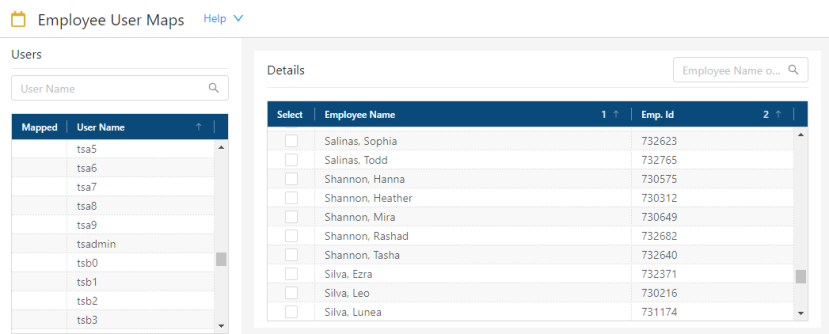
Fields for the Employee User Maps screen
| Field | Description | Notes |
|---|---|---|
| Users pane | ||
|
Search |
Begin typing an existing user name into the field to search the User Name list. The list automatically updates based on your entry. |
|
|
Mapped |
A chain link icon ( |
|
|
User Name |
User name associated with the account. |
Read-only. User accounts are created in the User Administration screen. |
| Details pane | ||
|
Search |
Type an employee's first name, last name, or employee ID number into the field to search the list. The list automatically updates based on your entry. |
|
|
Select |
A selected check box indicates which employee is mapped to the selected username. |
|
|
Employee Name |
Names of the registered employee. |
Read-only. |
|
Emp. Id |
Employee identification number associated with the employee. |
Read-only. |

Mapping user accounts to employees
-
In the Users pane, use the search bar or scroll through the list to locate the account that you want to map to an employee.
-
Select the row to highlight the User Name to be mapped.
-
In the Details pane, use the search bar or scroll through the list to find the employee that matches the selected user name.
-
Select the check box for the Employee Name that you want to map to the User Name that you selected in the Users pane.
The employee is associated with the selected account, and a chain link icon ( ) appears in the Mapped column.
Removing employee mapping
-
In the Users pane, use the search bar or scroll through the list to locate the account that you want to unlink from an employee.
-
Select the row to highlight the User Name to be unlinked.
-
In the Details pane, use the search bar or scroll through the list to find the linked employee.
-
Clear the check box for the Employee Name that you want to unlink from the User Name that you selected in the Users pane.
The employee is no longer associated with the selected account, and the chain link icon () is removed from the Mapped column.