Adding an earning in the Benefits screen
You can manually add an earning, such as a vacation day or accrual, in the View Benefits view of the Benefits screen.
Note: Manual entries should only be made for benefit accruals that will not be generated when the work rules are run.
- In the upper-left corner of the screen, select Access your applications (
 ).
).
The menu expands. -
Select T&A > Benefits.
The Benefits screen appears.
-
In the Employees section, select the employee and pay period.
For more information, see Selecting an employee and pay period in the Benefits screen.
 Click here for field descriptions.
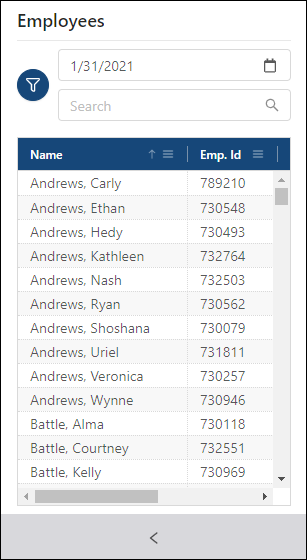
Fields on the Employees pane and general controls
Field Description Notes Project Accruals
Runs projections based on benefit calculations. The results describe the number of benefit hours employees have accrued.
Note: If you have recently changed an accrual work rule, you should project accruals so that the screen displays current information. For more information, see Projecting accruals in the Benefits screen.
The calculation is based on both Unifocus work rules and accruals that are imported through interfaces.
Employees pane 
Filter
Opens the Filter dialog box. Filter employees by:
-
Pay Types
-
Pay Groups
-
Balance Violations
-
Property
Date selector
Enter or select a date for a pay period. Selecting any date within the pay period displays information for the entire period.
If no employee is selected, the employee list shows all employees who are active in the selected or default planning period.

Search
Search for employees by first name, last name, or employee ID number.
Employee list
Select an employee from the list to view benefit details.
Note: A conflict icon (
 ) is displayed next to employees with negative balances.
This list displays all employee records to which you have access.


Expand / collapse
—Expands the Employees pane.—Collapses the Employees pane.Default: Expanded.
The View Benefits view appears in the details section. By default, all accrual types are displayed.
The View Benefits view, which is the default view of the Benefits screen, must be selected to add an earning.
Click here for field descriptions.
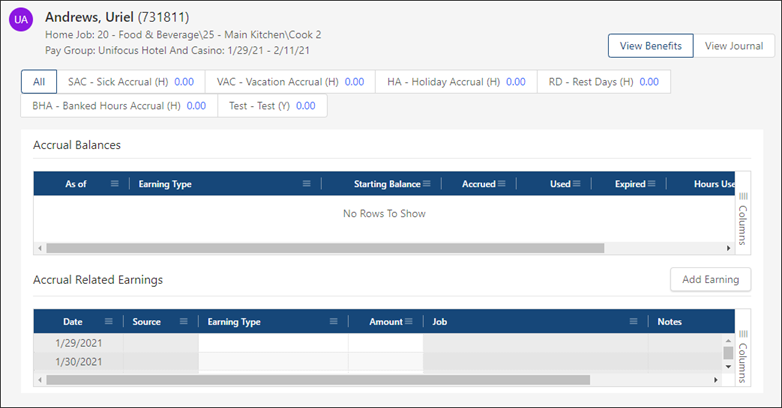
Fields on the View Benefits view
Field Description Notes Benefit details Employee details
Displays details for the selected employee, including:
-
Name
-
Job/assignment
-
Pay group
Read-only.

View selector
Options include:
-
View Benefits—Selects the View Benefits view, which displays all benefit accruals for the selected employee.
-
View Journal—Selects the View Journal view, which displays the history of a selected accrual earning type for the selected employee.
Default: View Journal
The button is outlined to indicate your current view.

Accrual Earning Type filter
Select an Earning Type to display only rows that contain earnings and balances for the selected type. Select All to view details for all Earning Types.
Note: The label for each Accrual Earning Type displays the name of the Earning Type and employee's current balance. Negative balances are displayed in red.
Accrual Balances This section displays information about accrual balances and totals for earnings. Earning Type
Earnings codes that can be added or debited to an employee's account.
Starting Balance
Balance at the beginning of the pay period.
This value is automatically entered by the software.
Accrued
Number of hours the employee accrued during the pay period, based on manual entries.
Used
Number of hours the employee used during the pay period, based on manual entries.
Expired
Number of hours that expired during the pay period.
This value is automatically entered by the software.
Hours Used
Number of hours the employee must work to earn the accrual. This number is configured in Benefit Accrual work rules.
For example, if an employee receives five hours of vacation for every 80 hours worked, you would see 80 entered in this column.
This value is automatically entered by the software.
Ending Balance
Balance at the end of the pay period.
Ending Balance = Starting Balance + Accrued hours − Used − Expired
As Of Date
Date when the ending balance was last calculated.
Source
Indicates the entry method of the earning. Earnings can be either user- or system-generated.
Examples: Rule, Ending Balance, Projected Balance.
Column filters (
 )
)Expands a columns filter pane where you can perform the following actions:
-
Select check boxes for columns you want to view.
-
Clear check boxes for columns you want to hide.
-
Use the Search tool to locate a column in the table.
Default: Collapsed.
Accrual Related Earnings This section displays earnings information for accruals, organized by date. Date
Date when the earning was accrued.
Source
Indicates the entry method of the earning. Earnings can be either user- or system-generated.
Examples: Rule, Ending Balance, Projected Balance.
Earning Type
Type of earning.
Examples: Banked Hours, Rest Days, Holiday, Sick, Vacation.
Amount
Amount for the earning.
Job
Job for the earning.
Notes
Displays notes entered about the earning.
Column filters (
)Expands a columns filter pane where you can perform the following actions:
-
Select check boxes for columns you want to view.
-
Clear check boxes for columns you want to hide.
-
Use the Search tool to locate a column in the table.
Default: Collapsed.
-
-
Do one of the following:
-
Above the Accrual Related Earnings table (on the right side of the screen), select Add Earning.
The Add Earning dialog box appears.
or -
Right-click in the Accrual Related Earnings table and select Add Earning.
The Add Earning dialog box appears.
-
-
Complete the fields as necessary.
Click here for field descriptions.
Fields on the Add Earning dialog box
Field Description Notes Earning Date
Select the date to which the earning is applied. This is the date that appears on the employee's Time Card.
The list includes dates that are in the open pay period.
Different Pay Date

Turn on (
 ) if you want to select a pay date that differs from the earning date.
If selected, the earning will appear in the employee's Time Card on the Earning Date, but the employee will be paid on the specified Pay Date. (See the row below for additional information.)
Default: Off (
).Pay Date
If you selected to have a different pay date, select the date from the drop-down list. This is the date on which the earning will be exported (through payroll export) and when the employee will be paid.
For example, if an employee's Earning Date is 12/9/2020 but the Pay Date is 12/11/2020, the earning will appear on the employee's Time Card on 12/9, but the earning will be exported and paid on 12/11.
This field appears only if you turned on Different Pay Date (
).The list includes dates that are in the open pay period.
Job
Job to which the earning will be applied.
Earning Type
Earning type for the earning.
Hours
Number of hours associated with the earning.
For example, enter 8 if the employee will receive 8 hours of vacation time.
This field appears only for hours-based earnings.
You can enter values up to two decimal spaces.
Days
Number of days associated with the earning.
For example, enter 2 if the employee will receive 2 days of vacation time.
This field appears only for days-based earnings.
You can enter values up to two decimal spaces.
Notes
Custom note about the earning.
Cancel
Closes the dialog box without applying your changes.
Save Earning
Applies your changes and closes the dialog box.
-
Select Save Earning.
The dialog box closes, and the earning appears in the Accrual Related Earnings table.