Task Log screen
The Task Log screen displays the history of all scheduled tasks.
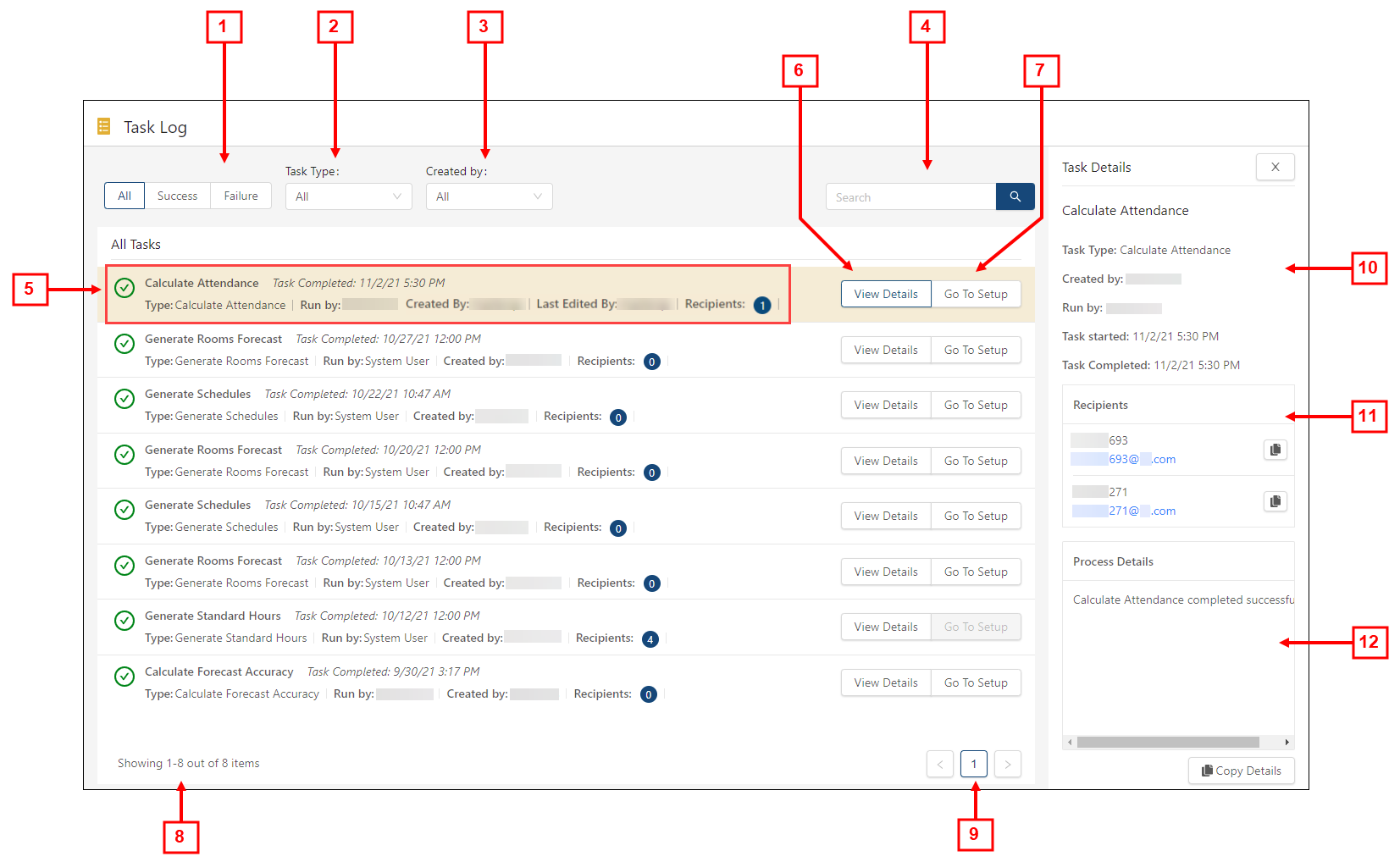
Fields on the Task Log screen
| # | Field | Description | Notes |
|---|---|---|---|
|
|
Tool bar | ||
|
1 |
Success / Failure filter |
Filter the screen by the following status options:
|
Default: All. |
|
2 |
Task Type filter |
Filter the screen by notifications with the selected notification type. Options include:
|
Default: All. |
|
3 |
Created by |
Filter the list by task creator. Options include:
|
Default: All. |
|
4 |
Search |
Enter a task name in the field and select the search ( |
|
|
|
Task table | ||
|
5 |
Task details |
This text includes the following information about the task:
A green check mark ( |
Read-only. |
|
6 |
View Details |
Opens the Task Details pane, which contains read-only information about the selected task. |
|
|
7 |
Go To Setup |
Opens the Task Setup screen with the selected task highlighted. |
This button is unavailable for tasks that have been deleted on the Task Setup screen. |
| 8 | Showing ___ out of ___ items | Text that describes the number of displayed tasks out of the total number of created tasks. | Read-only. |
| 9 |
Page navigation controls |
The central buttons indicate the number of pages. The highlighted button indicates which page you are viewing. Either select a page number button or use the previous and next buttons to navigate through the pages. | If there is only one page of tasks, the previous and next buttons are unavailable. |
|
|
Task Details pane | ||
|
10 |
General details |
Displays general details for the selected task. |
Read-only. Task details vary depending on the selected task. |
|
11 |
Recipients |
Displays the following information for recipients:
|
This section appears only if you configured the task to send notifications to recipients. |
|
12 |
Process Details |
Displays detailed information about the process for the scheduled task. To copy this information, select Copy Details ( Tip: The Copy Details feature is especially helpful for capturing information for tasks that failed. You can quickly copy-and-paste this information and share it with the appropriate users. |
|

 ) button. The table updates based on your entry.
 ) indicates that the last running of the task was successful.
 ) button—Copies the user name, which you can paste into other fields.
 ). You can then paste this information into text files, documents, or email messages.
Quick Reference Video
The following video shows you how to work with the Task Log screen.